Switching your monitor to another computer while a row was selected could wipe that row's notes: stray input during the switch replaced the text with nothing. A row's notes are now only cleared when you delete them yourself with Backspace, Delete or cut. Anything else that leaves the cell empty puts the text back.
Notes search still matches titles as you type. Press Enter to also search inside the full text of every note in the folder. Your notes stay end-to-end encrypted: they're downloaded and checked in your browser one at a time, and the decrypted text is discarded right after.
rows.life/notes introduces the Notes feature to people who haven't opened it yet: folders to any depth, images and PDFs inside notes, an editor built for very long notes, favorites, history and sorting, safe editing across devices, and the same zero-knowledge encryption as your rows. It also walks through moving in from Evernote or Obsidian with the command-line importers, including the merged import for people who used both. A new Notes item in the site header links to it from every page.
fix
Notes can't be cleared by accident — and saving still works everywhere #
A row could lose its notes without anyone deleting them: a notes editor that goes blank on its own — an idle tab whose row re-renders while the cell has focus, a mobile editor rebuilt after the app is backgrounded — was read as an empty note and saved as a deletion, leaving the row's time and category intact but its text gone.
Now an empty editor only clears notes when you actually edited it. An editor that blanks by itself puts the text back and writes nothing. This applies on desktop, in the edit dialog, on mobile web and in the TUI — the previous attempt only covered the desktop sheet, which is why it never protected mobile.
On the server, a save that arrives with no notes for a row that has them now keeps the notes instead of erasing them. It no longer answers with an error: the earlier version refused those writes, which broke ordinary edits that only touched a time or a category, and — because the offline queue treats a rejection as permanent — retired the queued edit to the recovery list instead of saving it. Preserving is silent and safe, and older clients keep working unchanged.
If an edit went missing during that window, it may still be on your device: Settings has a recovery list of rows stranded locally.
August 2026
fix
Mileage tooltips point at the right boundary reading #
On the Mileage report, hovering a month showed source readings that skipped a reading sitting inside that month. A month ending with a reading (e.g. Jul 31) displayed the next reading past the boundary (Aug 4) as its endpoint, even though August already used the Jul 31 reading as its start — so the same reading appeared on one side of the boundary but not the other. The tooltip now anchors on the last real reading inside the month. The distance totals were already correct and are unchanged; only the tooltip wording is fixed.
Pressing the insert-row shortcut could drop the new row two or three rows further down instead of directly under the row you were on. When the new row shared a start time with the rows around it (common, since each row starts where the previous one ends), it slid to the bottom of that group. New rows are now anchored directly beneath their source row. As part of the same fix, inserting a row into the middle of a past day no longer stamps it with an end time of "right now" — that used to create a phantom multi-hour row.
July 2026
fix
New rows on mobile: stop losing the scroll that reveals them #
A row added on the phone could still be left below the bottom of the list, with a trip to another view and back the only way to bring it up. Scrolling to the new row was attempted for two frames after the editor closed, and on a phone that is not long enough: the software keyboard is still sliding away, the list is still being resized around it, and a scroll asked for mid-resize is quietly dropped. The app now keeps asking until the row is measurably on screen, and holds the row in the list while it does so, rather than betting on catching the right frame. Starting to scroll yourself cancels it immediately.
Saving a new row on the phone left it out of sight below the bottom of the list — switching to another view and back was the only way to bring it up. The list works out how far it can scroll from a fixed height per row, which leaves out the header drawn at the start of each day, so on days with only a row or two the list is taller than it thinks and jumping to the "bottom" stopped short of the last rows. It now scrolls by its real height, and straight to the row you just saved. Rows waiting to sync are also rebuilt from the pending queue, so one added offline still appears after closing and reopening the app.
A row added offline is held on the device until it can be uploaded. If that upload was interrupted and the queued copy was lost, the row quietly stopped appearing once you were back online — the server had never heard of it, so there was nothing to show and nothing in the deleted list either, even though the row was still sitting on the device. Settings → Recover Rows now has a "Rows Saved On This Device" check that finds those rows and puts them back with their original date, time and notes. Rows still waiting to sync are left alone, and a row you deleted on another device is never brought back.
fix
Rows can no longer be overwritten by the + button #
Adding a row could silently consume an existing one. To avoid stacking blank rows, + would hand back the last row instead of making a new one whenever that row had no category and no notes — but a real tracked row can look exactly like that (say 7:00–10:00, not categorised yet). On the phone, + then opened it as if it were new, and saving replaced the morning with the new entry: no delete, nothing in the recoverable list. Only a blank row created moments earlier is reused now. Two related fixes: a row still waiting to sync no longer disappears from the list when the device has no local copy of it, and edits that fail to upload are kept and retried instead of being discarded — previously an expired session during sync could throw away a row created offline before it ever reached the server.
Adding a row while offline worked, but going back to the list could show it missing — and sometimes the list came back empty. Three things were behind it. The list rebuilds itself from the local cache when there's no connection, and a row saved a second earlier could lose the race to be written there; it now keeps any row that's still waiting to sync. An empty local cache no longer blanks a list that's already on screen. And refreshing your login token — which needs the network — was being read as an expired session, which pushed the app toward a login screen it couldn't load and, worse, could discard rows still queued to sync. That's now recognised as "offline", not "logged out". Launching the app offline also works from a cold start: your encryption key is kept on the device, so it unlocks without the server.
The new rows import-health command streams scalar measurements directly from an Apple Health export ZIP and stores them as zero-duration rows.
Start with rows import-health ios-health-export.zip --preview to see the supported series, record counts, date ranges, and units found in the export. Select one or more series with --series, for example --series weight --series resting-heart-rate, then remove --preview to import. Each selected series becomes its own top-level type, such as Weight or Resting Heart Rate. When importing one series, use --type Health --subtype Weight to place every measurement under a specific type and subtype; --subtype cannot be used without --type.
Imported values are encrypted locally inside row notes. Deterministic row IDs make repeated imports safe and automatically collapse exact duplicate records.
feature
New report: Measurements — changing values over time #
The new Measurements report in Statistics turns numeric rows into private value-series charts. Choose a type and, when available, a subtype such as Health → Weight, Heart Rate or Body Fat. Rows shows the latest value, change, average, observed range and measurement count.
Switch between raw observations and weekly, monthly or yearly summaries. Charts use clear whole-number value scales and show every month in shorter date ranges. Each period includes its average, minimum, maximum, first value, last value and change. Missing periods are omitted rather than estimated.
A row becomes a measurement when its encrypted note starts with a number and optional unit, such as 77.6 kg. This includes rows created by the Apple Health importer as well as values entered manually. Notes are decrypted and analyzed only in your browser; the server never sees the measurements.
feature
New report: Mileage — odometer readings from plain rows #
Log a row whenever you glance at the odometer — category Km, subcategory = the vehicle, note starting with the reading — and the new Mileage report in Statistics turns those rows into km per year and per month, per vehicle and total.
Honest numbers — periods without nearby readings are marked as estimated, with the exact source readings shown on hover; nothing is ever extrapolated beyond your data.
Typo detection — odometers only count up, so a reading lower than the previous one is flagged instead of silently producing wrong distances.
Per-vehicle cards — current odometer, recent km/year pace, and a nudge when a vehicle hasn't been logged in a while.
Private by design — readings live in encrypted notes; everything is computed in your browser after decryption. The server never sees a single km.
Works for anything that only counts up: electricity meters, bike odometers, book pages.
fix
Notes: no more page zoom when editing on a phone #
On mobile browsers, tapping into a note's editor (or the search box) made the page zoom in and shift around. This was iOS Safari's auto-zoom kicking in for text fields smaller than 16px — the same reason Rows editing was already immune. Notes fields now use 16px on mobile, so the layout stays put while you type.
improvement
Notes: favorites, navigation, sorting, sizes & more #
A batch of Notes improvements:
Favorites — star a note from its toolbar; starred notes appear in a Favorites section in the sidebar.
Navigation history — back/forward through recently visited notes, with a dropdown to jump to any of them.
Sorting — sort the list by last changed, created, or size (ascending or descending).
Sizes — the header shows the folder's full path and total size (summed across subfolders), and file/PDF attachments show their weight.
Folders — rename from a button; opening a folder that only holds subfolders shows what's inside.
Images — a selected image shows its dimensions and weight, with a one-click option to shrink it to the size it's shown at.
Plus instant folder counts when moving notes and tidier folder alignment on mobile.
fix
Fix spurious 'edited on another device' on notes #
A note could wrongly warn that it was edited on another device — and then lose your last edit — even when it was only open in one place. This happened when two auto-saves overlapped, or when a save's write reached the server but its response was lost (a brief network blip). Saves are now serialized so they can't race, and a version mismatch is reconciled against the server before assuming a conflict: if the server already holds your own content, the save simply catches up instead of warning. The conflict banner now appears only for a genuine edit from elsewhere.
fix
Fix notes occasionally losing lines or indentation on edit #
While editing a note, the browser sometimes stored line breaks in a way that made a single edit merge several lines into one, drop text from the start of a line, or lose the indentation Enter should carry. The editor now reads and writes line breaks consistently no matter how the browser structured them, so lines and indentation are preserved. Covered by tests reproducing each case.
In a very long note the browser was re-spellchecking the entire note on every keystroke, which made typing and pressing Enter lag. Spellcheck now turns off automatically for large notes, so editing stays responsive. Normal-sized notes keep spellcheck.
fix
Tab now indents selected lines instead of deleting them #
Selecting text and pressing Tab (or the indent button) used to replace the selection with a single tab — so the selected lines vanished. Now Tab adds an indent to the start of every selected line, and Shift+Tab (or the outdent button) removes one level from each, with the selection kept so you can keep pressing. A plain cursor still just inserts a tab.
fix
Fix lost edits (and pasted images) when switching notes #
Two ways a note could lose recent changes when you switched away from it are fixed. First, to keep big notes typing smoothly the editor saved its text a moment after you paused — and switching in that window could grab the older text; it now always captures the current content first. Second, and more seriously: if you pasted images and switched (or left Notes) before they finished uploading, those still-uploading images were dropped from the save — so freshly-added images at the top of a note could vanish. Saving now waits for in-flight image and file uploads to finish first. Image-heavy notes also load a little more smoothly.
Opening a note packed with large images used to decrypt and decode every image at once, freezing typing for a few seconds. Images now load lazily — only the ones near what you're viewing are decoded, the rest as you scroll to them — so even a note full of pasted images opens smoothly.
improvement
Notes warn instead of overwriting when edited in two places #
If the same note was open in two tabs or on two devices, whichever saved last could silently overwrite the other's changes. Now each save carries the version it started from, and the server rejects a save that would clobber a newer copy. Instead of losing work, you get a clear banner — "this note was changed in another window" — with a Reload button to pull the latest.
June 2026
improvement
Indent and outdent buttons for notes (work on mobile) #
The note editor toolbar now has indent (⇥) and outdent (⇤) buttons, so you can change indentation even on a phone — the iOS on-screen keyboard has no Tab key. On a physical keyboard, Tab indents and Shift+Tab outdents.
improvement
Moving a note keeps its modified date; notes show created date too #
Moving a note to another folder (or reordering it) no longer changes its "last modified" date — only real edits to the title or text count as a change, so notes don't jump to the top of the list just for being filed. The note view now also shows the Created date next to Updated.
improvement
Easier to tell when you're at the bottom in the terminal app #
The terminal app now keeps a few blank lines below the newest rows instead of letting them sit right against the bottom edge. Just like the web app, that little gap makes it obvious at a glance when you've reached the end of the list — and any rows that sync in from another device show up clearly in the space below your cursor.
Writing indented notes now behaves the way you'd expect. Tab inserts a tab (it used to just move focus out of the editor), Shift+Tab outdents, and pressing Enter keeps the current line's indentation, so nested lists and indented blocks stay lined up. Shift+Enter gives you a plain, unindented break.
The Notes view was built as three side-by-side panes, which didn't fit on a phone. On mobile it's now a clean drill-down: you start on your folder tree, tap a folder to see its notes, tap a note to read or edit it full-screen — with a Back button at each step. Rows and Notes are now two worlds you switch between with a small toggle at the top, and the bottom bar gets out of the way while you're in Notes.
Switching from Rows to Notes used to blank the screen and reload the whole library every time. Notes now keeps its view in memory — like Rows already did — so coming back is instant, showing your last folder and note immediately while it quietly refreshes in the background. The Notes view is also prewarmed while you're on Rows, so even the first switch is fast. And the note list now loads a page at a time — only the notes you actually see — fetching more as you scroll, so a notebook with thousands of notes opens just as fast as a small one. Searching still covers everything: it pulls the full notebook behind a progress bar (your notes are end-to-end encrypted, so the search runs on your device).
On mobile, switching from Rows to Notes no longer makes the header jump upward. The Notes view now reserves the same top safe-area space as the Rows view, so the Rows/Notes toggle and everything below it stay in exactly the same position when you flip between the two worlds.
Editing a very long note (hundreds of KB) used to lag on each keystroke — pressing Enter or typing took a noticeable beat. The editor was re-serializing the entire note to markdown on every keypress. It now defers that work until you pause, and does it more cheaply, so even big notes type smoothly. Your edits still save the same way.
In the terminal client, the delete confirmation now names the exact row — its date, time, and activity — instead of a generic "Delete this row?". The row to delete is locked in the moment you press Delete, so if a background sync pulls in rows from another device and reshuffles the grid while the prompt is open, the delete still removes the row you picked rather than whatever slid under the cursor.
Opening the map used to load every location you've ever saved, which could take a while and pull in a lot of data. The map now starts on today's locations and loads quickly — you can still switch to a week, month, year, or all time whenever you want the bigger picture.
fix
Rows added on other devices now show up in the terminal client #
Rows you created on the web or another device wouldn't appear in the terminal client (TUI) while you had it open — the grid only ever refreshed when you started editing a cell or restarted the app, so new entries from elsewhere seemed to never arrive. The TUI now checks the server for changes in the background and, while you're viewing your most recent rows (the bottom of the grid, where the cursor sits by default), quietly pulls them in within a few seconds and drops to the new entries so you can see them. It holds off while you're mid-edit or scrolled up reading older history so your place is never yanked, and you can force a refresh at any time with F5 (or Ctrl+R). The build identifier is now shown in the top bar so you can tell exactly which version you're running. Claude's local cache, which the TUI also keeps in sync, had a related issue where its sync marker could skip rows created on other devices; it now tracks the server's own timestamps so those entries are no longer missed.
Adding a row while your connection briefly stalls could queue it for sync without you noticing. If the app then refreshed the list from the server before that row finished syncing, it would disappear from the view until you reopened the app. Rows with edits still waiting to sync are now kept on screen through a refresh, so what you just saved stays visible.
fix
Detect "connected but blocked" networks and switch to offline mode #
On networks that connect but don't actually reach us — airplane or hotel WiFi that only allows a few apps, captive portals — your device reports itself as online, so the app used to keep trying to reach the server and never switched to offline mode. We now actively probe reachability with a short timeout, so the app drops into offline mode promptly: your changes are saved locally and queued to sync, and the offline banner appears as it should.
Fixed a problem where rows added while offline (for example, on a plane) wouldn't appear in the list — and stayed hidden even after reopening the app — until you reconnected. The app now rebuilds the rows view from your local offline copy when there's no connection, so newly added rows are visible immediately. Your changes were always saved safely and synced on reconnect; this fixes only the display.
feature
Add and edit rows offline — they sync when you reconnect #
You can now create, edit and delete rows (and GPS points) with no connection. Changes are saved to a local store and queued; the moment you're back online they sync automatically, and edits made on your other devices flow back in. Notes search also works offline now, instantly, against a local mirror of your data. Conflicts use last-write-wins, and the full edit history remains available for recovery.
The installed app now launches without a connection. Previously, opening rows.life on an iPhone home screen while offline showed a blank screen — even though your data was cached locally, the app shell itself never loaded. The service worker now caches the app shell document and serves it for offline launches, so you can open the app and browse your cached entries with no signal.
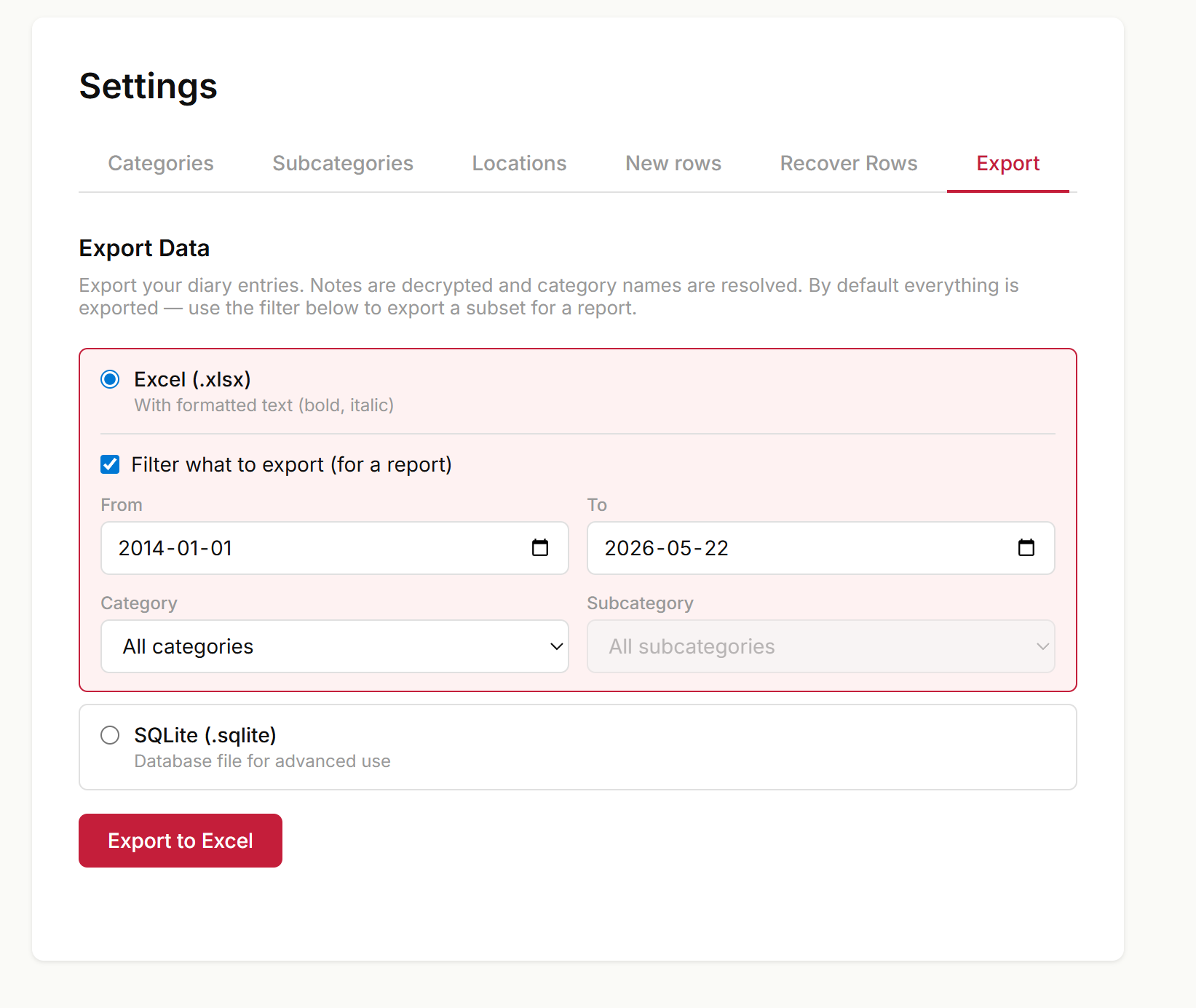
Excel export still defaults to exporting everything — a full backup — but you can now narrow it down. In Settings → Export, with Excel selected, tick Filter what to export to choose a date range and a category (optionally a single subcategory). Picking a parent category includes all of its subcategories. Handy for pulling just a client's hours or a month's entries into a report without hand-trimming the spreadsheet afterwards. SQLite export is unchanged and always exports the complete database.
The map could stall when opening a range with many thousands of GPS points (e.g. after importing a long track). It now opens smoothly: the "furthest apart" stat skips a brute-force pass, marker pins are built and inserted in bulk, and pin details are rendered only when you actually click a pin.
The Jump to heatmap on the map could show a non-zero count for a week or month that had no points to display — clicking the cell opened an empty map. This happened when a row had GPS points added manually (or imported) whose own timestamps fell outside the row's day: the heatmap counted those points under the point's timestamp, while the filter that loads the map fetches rows by the row's start time, so the two disagreed. The heatmap now buckets every point by its parent row's start time, matching what the map actually renders when you click the cell.
improvement
CLI import-gps: tell apart two phones of the same model, optionally record which one #
When you share a photo library with someone — partner, family — and you both have the same iPhone model, rows import-gps used to lump everyone's photos under the same device label ("Apple iPhone 14 Pro"), so --device couldn't separate them.
The importer now also reads the EXIF HostComputer field, which is where Apple's Camera app writes the device's user-set name (the one in Settings → General → About → Name). When present, it gets appended to the device label, so two same-model phones show up as separate entries in the device summary and you can filter them apart:
Devices found:
   1,243  Apple iPhone 14 Pro — Pablo's iPhone
     872  Apple iPhone 14 Pro — María's iPhone
      48  Apple iPhone 14 Pro
Then --device "Pablo" (case-insensitive substring) imports only yours.
There's also a new --note-device flag. Used together with --create-missing, it appends a line to each new entry's notes saying which device(s) the photos came from — e.g. "Pictures taken with Apple iPhone 14 Pro — Pablo's iPhone". Handy when you import a partner's photos and want the entry itself to remember whose camera it was, without rummaging through metadata later. The preview output shows the device suffix too, so you can see what the notes will say before committing the import.
Two caveats on the HostComputer side. It only works for photos, not videos — Apple's .mov metadata doesn't carry the device name. And it only helps if the phones have non-default names: if both are still called "iPhone", there's nothing to distinguish. Renaming a phone affects future photos only; historical ones keep whatever was set when they were shot. Photos that came through metadata-stripping services (WhatsApp, Telegram) won't carry HostComputer either.
fix
Named-location coordinates no longer leave the server in plaintext #
Named locations (your @home, @office, …) are the one place coordinates were historically stored unencrypted on the server, while everything else — notes, GPS points, category names — has always been encrypted in your browser before it leaves your device. We've been migrating those anchor coordinates under the same zero-knowledge encryption; each client quietly re-encrypts them the next time you log in.
This release closes the remaining gap: once a location's coordinates have been encrypted, the API stops returning the old plaintext copy entirely — it's dead weight the apps already ignore. Plaintext is now sent only for locations that haven't been re-encrypted yet, and solely so the migration can finish the job. We also fixed an edge case in the desktop/TUI client where a half-written record could be mistaken for "already encrypted" and skipped, leaving its plaintext stranded.
No action needed on your part, and nothing changes in how locations look or behave.
On phones, picking a specific scope (Day, Week, Month, Year) made the date stepper push the toolbar wider than the screen — the next-day arrow and the Area button got clipped off the right edge, so there was no easy way to draw an area filter. The toolbar now stacks cleanly: the scope pills and the date stepper each take their own full-width row, the date label truncates instead of wrapping, and the Area button (with its label) stays fully visible next to the category filter.
The new Filter by area rectangle didn't work on touch devices — drag-to-draw conflicts with single-finger pan, so no rectangle would ever land. Touch now uses a two-tap flow instead: tap the Area button, tap one corner of the area you want, tap the opposite corner, done. A small red dot marks the first corner so you can see what's coming, and pan/zoom stay enabled between taps so you can reposition the map.
Two related fixes on phones:
The Area button was getting clipped at the right edge of the toolbar because the category dropdown's flex-grow pushed it off — now icon-only on phones and flex-shrink-0 so it always stays visible.
The draw-mode hint no longer talks about pressing Esc on touch (there's no Esc key); it now shows a Cancel button alongside the instruction.
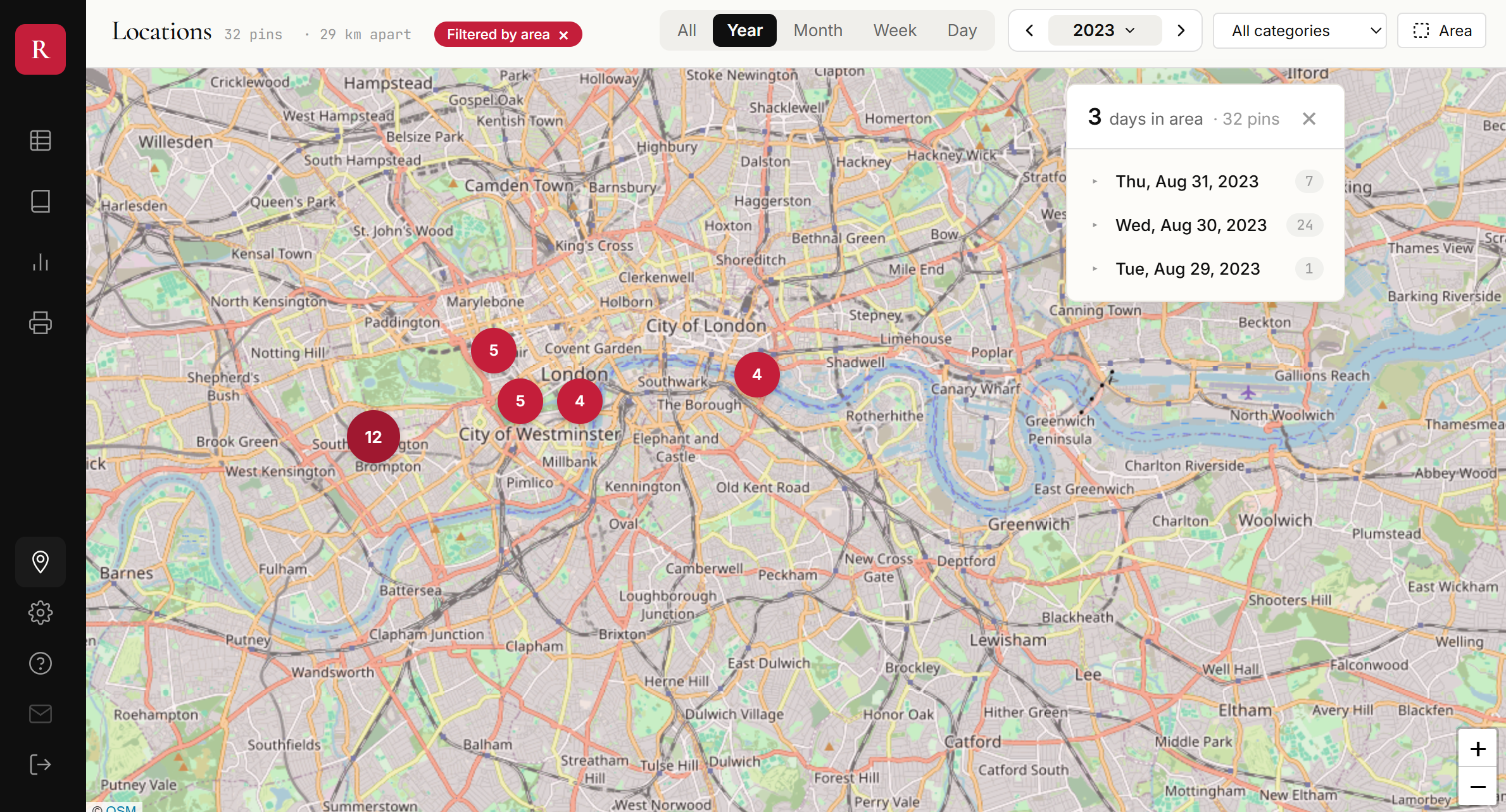
A new Area button in the map toolbar lets you drag a rectangle on the map. Once drawn, only locations inside that rectangle show up — date scope and category filters still apply on top, so you can ask things like "how many days did I spend in London in 2023?" with one selection.
A Locations panel appears alongside the map listing the distinct days you've been in the selected area, with the per-day pin count. Click a day to expand its entries; click an entry to pan the map to that point. The headline number — N days in area — is the simplest honest answer to "how often have I been there?"
On mobile, the panel becomes a second tab next to the map (only visible while a filter is active). The mobile toolbar also got a small layout fix: km apart no longer gets clipped at the right edge of the screen.
Press Esc while drawing to cancel; click the Filtered by area chip in the toolbar to clear an active filter.
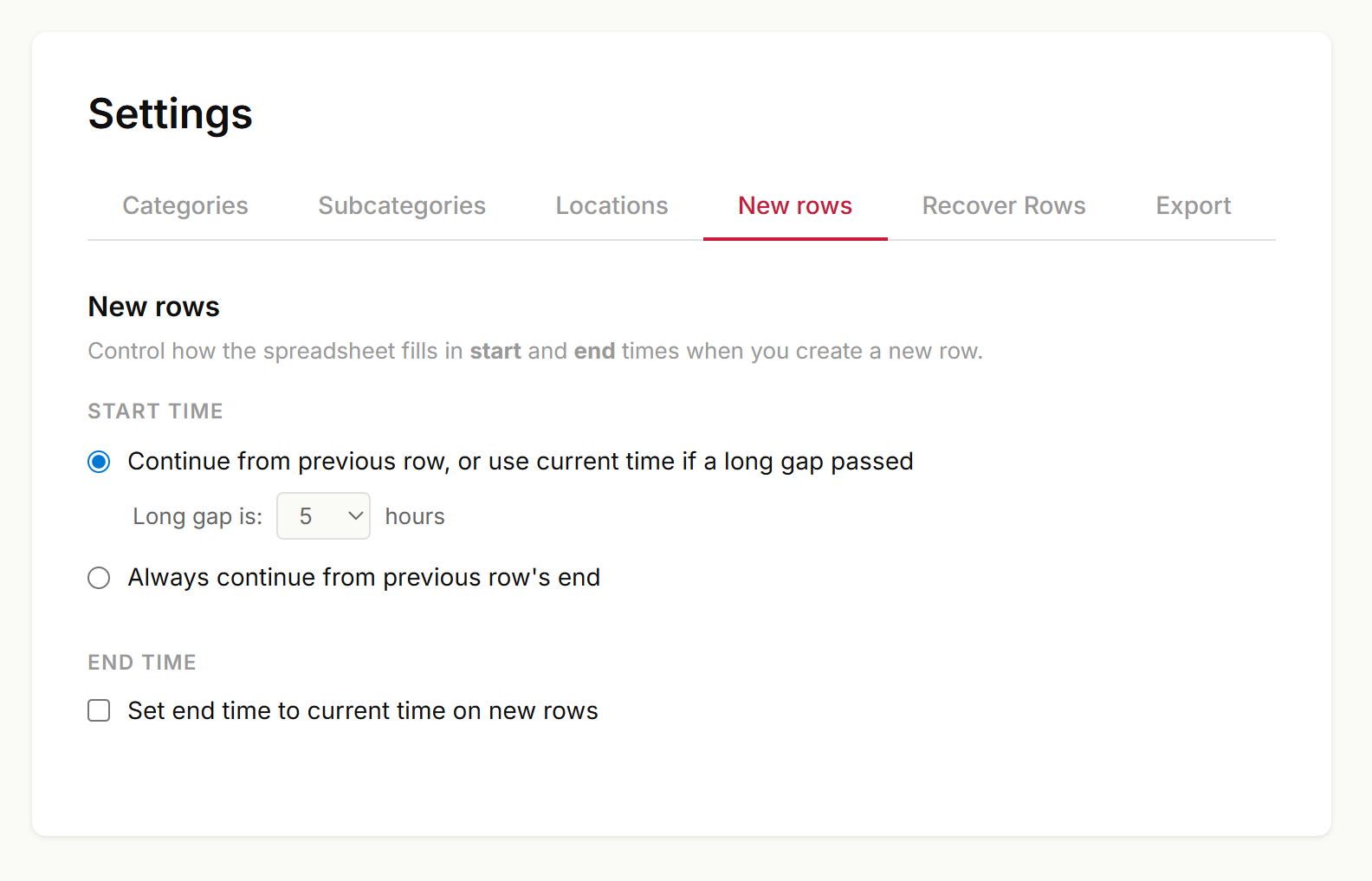
Settings has a new New rows tab that turns previously hardcoded behavior into preferences that sync across devices.
Start time
The default still applies — when you add a row at the bottom of the sheet and a long gap has passed since your last entry, the new row jumps to the current time instead of continuing from where the previous one ended (introduced in PR #12 with a hardcoded 5-hour threshold). You can now:
Pick the threshold yourself (1–24 hours).
Or turn the behavior off entirely — every new row starts from the previous row's end, no matter how long ago that was.
End time
New: opt in to set end time to current time on new rows. Off by default. When on, every new row is created with both start and end already filled in — useful if you mostly track tasks you've just finished.
Everything is stored per-account and applies on web today, with TUI and mobile to follow.
When you have Set end time to current time on new rows turned on, pressing Enter repeatedly on a blank row at the bottom of the sheet used to create a stack of zero-duration rows with timestamps marching into the future and the focused row jumping a couple of positions up between presses.
Now: if the bottom row has no category, no subcategory and no notes, pressing Enter is a no-op — the cursor stays put on the row that's still waiting to be filled in. Once you've filled in any of those three fields, Enter creates a new row again as before, and the new row's end time is clamped so it never sits before its start.
fix
Settings and Analytics tabs no longer get clipped on mobile #
Adding the new New rows tab pushed the Settings tab bar past the edge of the screen on phones — the rightmost tabs (and the page content) ended up cut off. Same thing was already happening to the Admin Analytics page once it grew to seven tabs.
On narrow viewports, tabs now wrap onto a second row with a pill-style active highlight, so every section is reachable without horizontal scrolling. Desktop layout is unchanged.
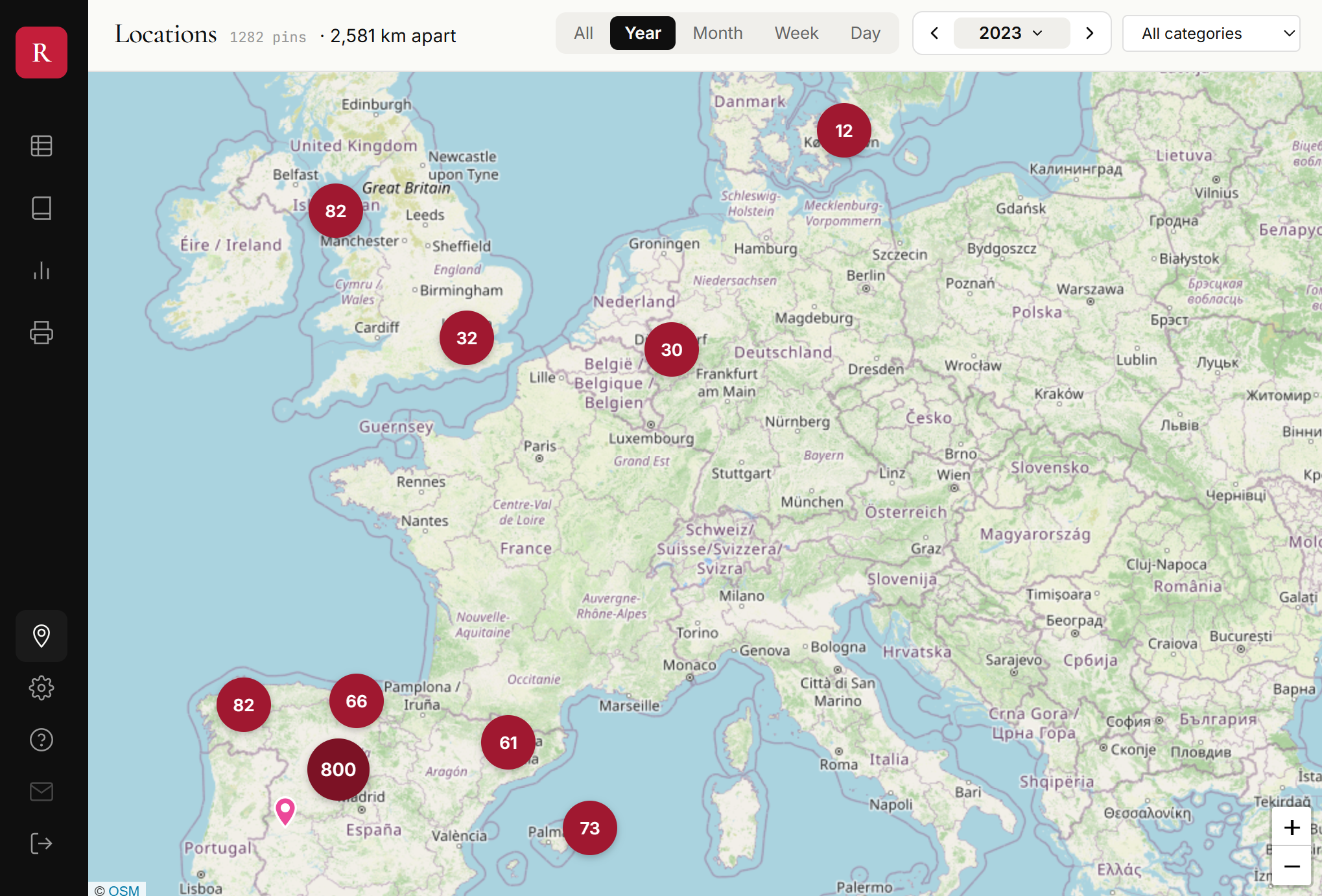
The map toolbar now shows a small X km apart stat right next to the pin count — the great-circle distance between the two furthest GPS points in whatever date range you have selected. Switch from Year to Month to Week and watch it shrink as the trips fall out of view.
It's the simplest honest answer to "how far did I get this year?" Picking diameter rather than path-length sidesteps the trap of pretending we know the route between sparsely-tagged points: a single Madrid pin and a single Tokyo pin from the same trip would otherwise read as a 10,800 km straight-line jump even though we have no idea what was traveled in between. X km apart just states the geographic fact about two points the user actually tagged, with no claim about routes.
Hidden when there are fewer than two points or the spread is under 1 km — a stay-at-home week stays clean, a trip across Europe lights up.
The in-app messages system now supports single-choice questions, not just announcements with a CTA button. When a message has options attached, the popup renders them as chips — picking one records the response and dismisses the message in a single click.
First use of it: a one-question survey for users with 5+ days of tracking, asking whether they'd prefer the End column to fill automatically with the current time when creating a new row.
feature
Jump to any week on the map — new scope filter with GPS heatmap #
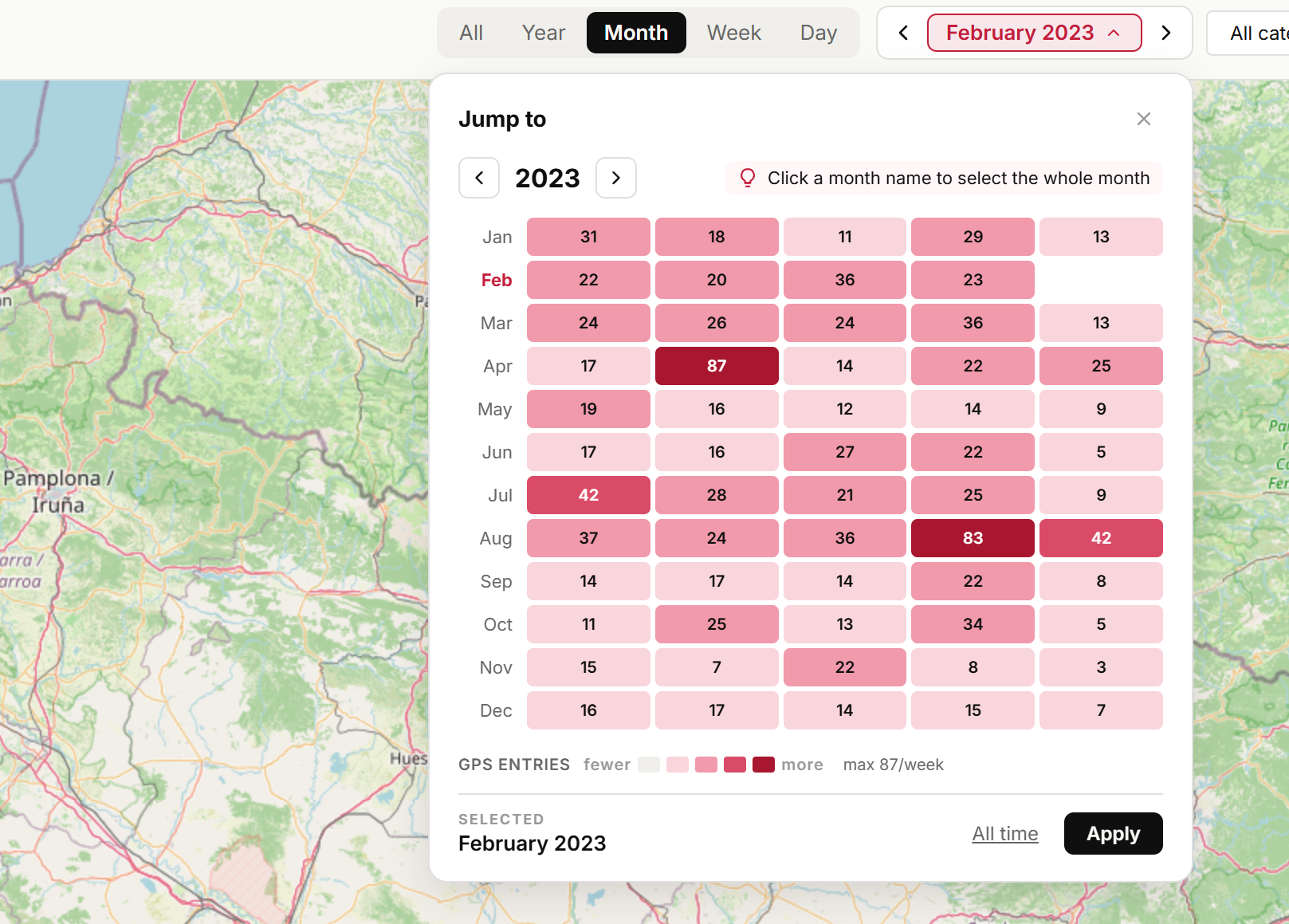
The map's date filter has been rebuilt around a single question: which week should I be looking at? The old All time dropdown is gone; in its place there's a scope bar with All · Year · Month · Week · Day pills, a prev/next stepper for the current scope, and a new heatmap popover for jumping across years.
Scope pills + stepper. Pick the granularity once; the ◀ label ▶ arrows step ±1 of whatever scope you're in — next week, previous month, next year. One click, no re-selection.
Heatmap popover for big jumps. Click the label to open a 12-month × 5-week grid for the selected year. Each cell is colored by how many GPS entries landed in that week — so a week spent in Madrid lights up dark, a quiet week at home stays pale. The exact count is printed inside every cell (847, 2.4k, 16k) so you can triple-check what you're looking at.
Click a cell → filter to that specific week
Click a month name on the left → filter to the whole month
Arrows at the top of the popover → switch years without touching the map; hit Apply to commit, or click a cell/month to apply in one step
Day scope swaps the heatmap for a regular month calendar — click any day to filter to it, including a Today shortcut.
Quieter data loading. Navigating years inside the popover is staged — the map only reloads when you actually apply a selection, so scrubbing back through 2014 → 2015 → 2016 doesn't trigger a cascade of fetches. Each year's heatmap density is fetched once and cached.
The heatmap counts individual GPS points (not rows), so it matches exactly what the map shows when you zoom in — a row with a full day of auto-tracking contributes all of its points to the week, not just one.
fix
Fix: clicking outside the grid no longer steals focus #
Clicking or selecting text in side panels, filters, or any area outside the spreadsheet grid would immediately lose focus and snap back to the grid, making it impossible to interact with other parts of the UI. The grid's focus-recovery logic (designed to handle cells removed by virtualization during scrolling) was too aggressive — it reclaimed focus on every focusout event, even when the user intentionally clicked elsewhere. Now focus is only reclaimed when a cell disappears due to virtualization, not when you deliberately click outside the grid.
The edit dialog in the terminal client now uses Ctrl+S to save and close (previously Ctrl+Shift+Enter, which caused issues with some terminal emulators). Enter continues to insert newlines for multi-line notes.
March 2026
improvement
TUI: improved edit dialog shortcut and Ctrl+E from new rows #
Two quality-of-life improvements for the terminal client:
Ctrl+Shift+Enter now saves and closes the edit dialog (was Ctrl+Enter, which conflicted with some terminal emulators). Plain Enter inserts a newline as before.
Ctrl+E works while typing — you can now press Ctrl+E while editing any cell (including a brand new row) to open the full multi-line edit dialog. Previously you had to finish editing first, then press Ctrl+E separately.
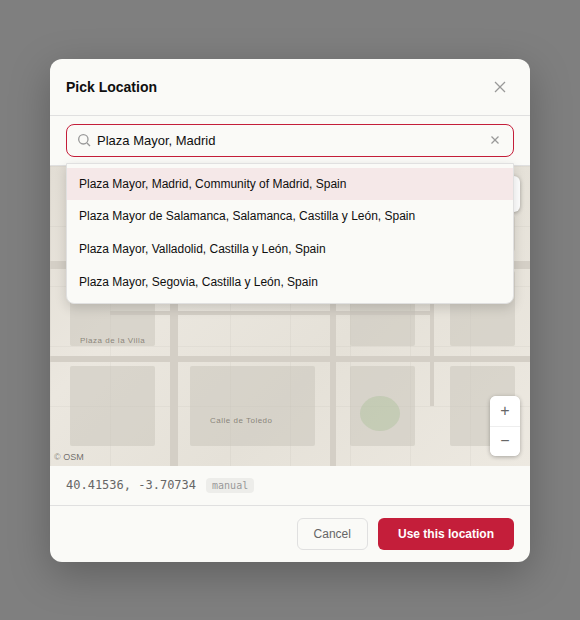
You can now search for an address or place name when picking a location. The search bar in the location picker dialog uses Mapbox geocoding to find places and jump to them on the map.
fix
Fix: filtered rows view no longer breaks on tab switch #
When using a notes filter (text search) in the rows view, switching to another window and coming back would blank the screen and show an incorrect row count. The background refresh was overwriting the client-side filtered results with unfiltered server data. Now the refresh is skipped when a notes filter is active, preserving the filtered view across tab switches. Also fixes the scrollbar shaking that could occur with active filters.
fix
Fix mobile notes scrolling when keyboard is open #
Fixed an issue where scrolling through long notes on mobile caused the UI to shake, making it impossible to reach content hidden behind the keyboard.
Adding a location to an entry that already had one resulted in duplicate GPS points with no way to remove them. The agent and MCP integration now support a delete_locations tool that removes all GPS points from an entry.
To fix a wrong location: ask the agent to delete the location, then add the correct one.
The daily and weekly stats panels now show the day-of-year number next to the date and the ISO week number next to the week label. For example, Sat, Mar 28 (87) means it's day 87 of the year, and THIS WEEK (13) means ISO week 13. Displayed in both desktop and mobile stats views.
feature
Named locations — bookmark places and use @mentions #
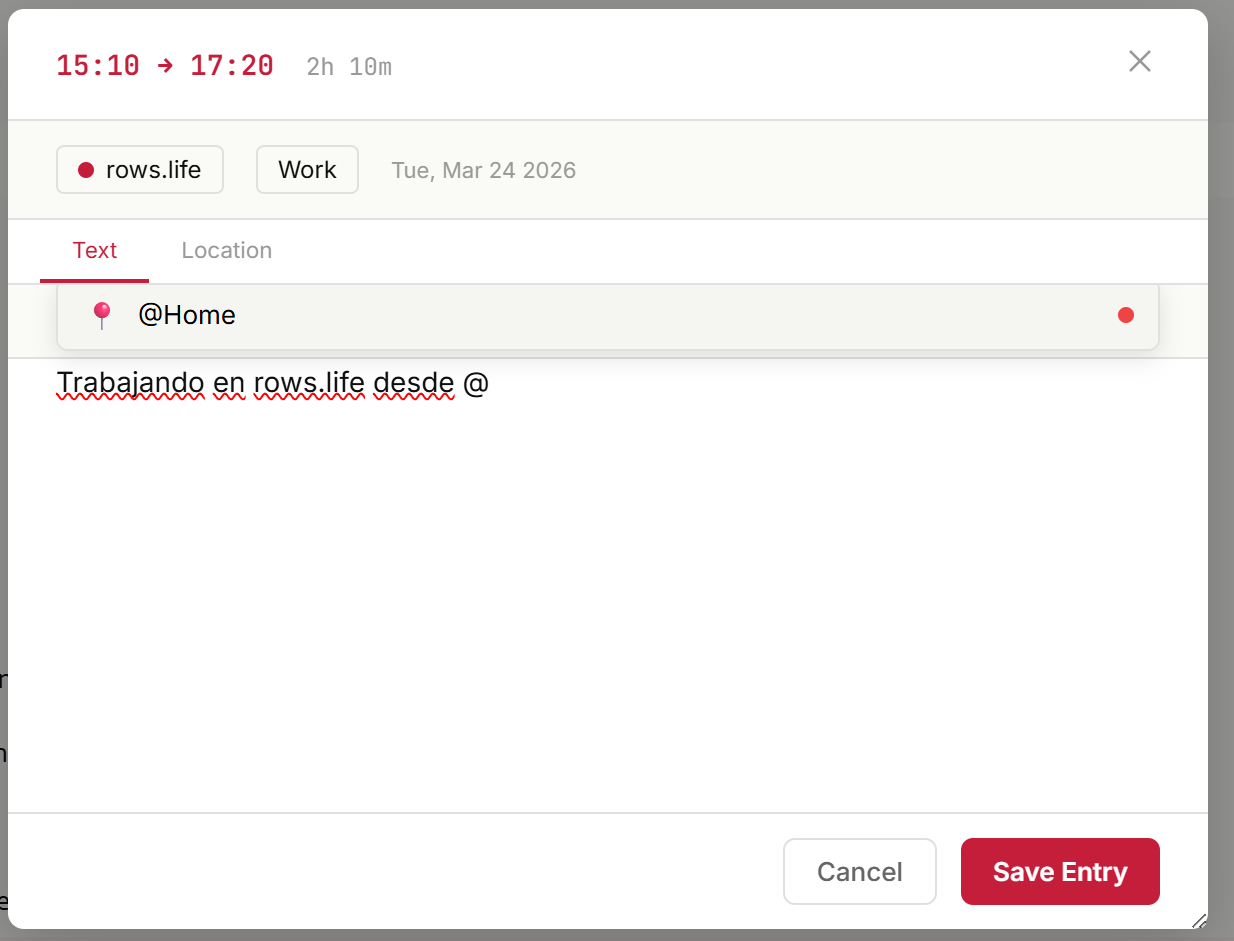
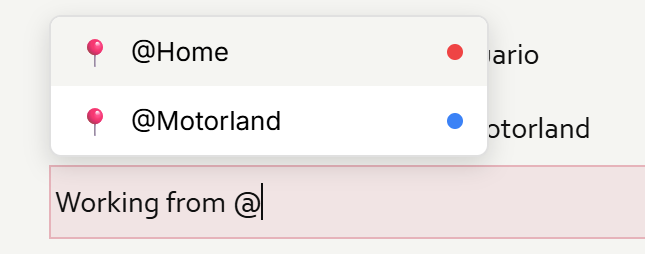
You can now save frequently-used places like @Home, @Office, or @Gym and reference them with a simple @ mention in your notes. Selecting a location automatically attaches GPS coordinates to the entry.
Three ways to create named locations:
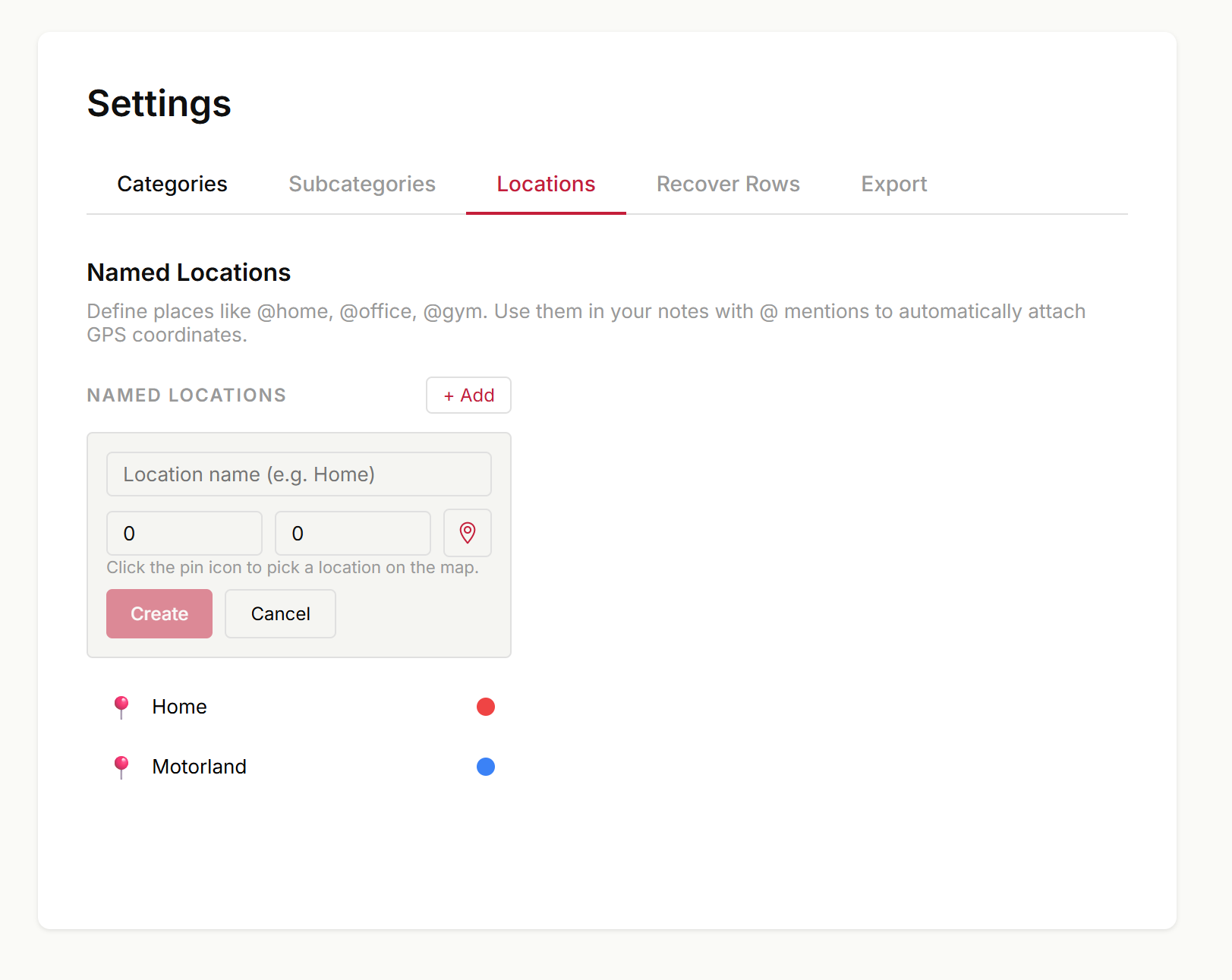
Settings > Locations tab — manage all your places with name, emoji, color, and a map picker for coordinates
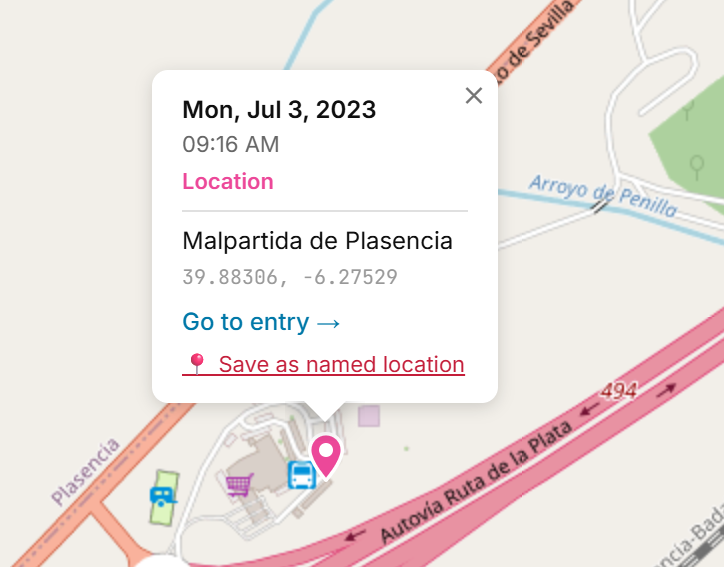
Map view — right-click or long-press anywhere on the map to save that spot, or click "Save as named location" on an existing pin
MCP / Agent — create and use named locations via the CLI agent or Claude Desktop
@ autocomplete everywhere:
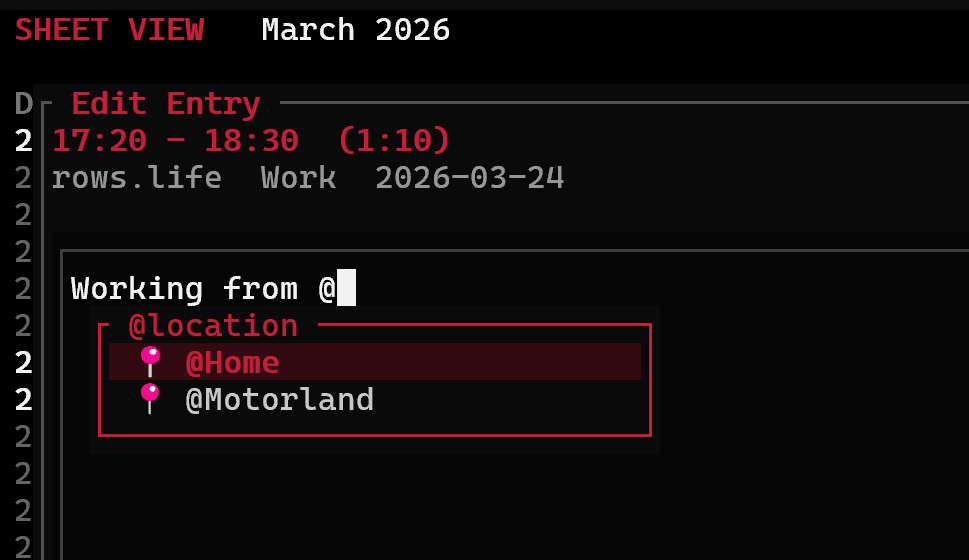
Type @ in the notes field (rows view, edit dialog, or mobile) and a dropdown appears with your saved locations
Arrow keys to navigate, Enter to select — GPS is attached instantly
Works in the terminal TUI too (both inline editing and Ctrl+E edit view)
The rows agent and MCP integration can now edit existing entries and add GPS locations — two capabilities users had been asking for.
Edit entries — Change the start/end time, category, subcategory, or notes of any entry. Only the fields you mention get updated; everything else stays as-is. No more deleting and recreating entries just to fix a typo.
Add location — Tag any entry with GPS coordinates by telling the agent where it happened (e.g. "add Madrid as the location for that entry"). Coordinates are encrypted client-side, consistent with our zero-knowledge model.
The delete row shortcut on macOS is now ⌘+Backspace, matching the standard macOS convention. Previously it required ⌘+Delete (forward delete), which many Mac keyboards don't have as a dedicated key. Windows and Linux shortcuts remain unchanged (Ctrl+Delete).
You can now delete time entries through the MCP integration and the rows agent. Claude can find and soft-delete entries on your behalf — deleted entries can be recovered within 30 days.
Use search or filter tools to find the entry first, then ask Claude to delete it.
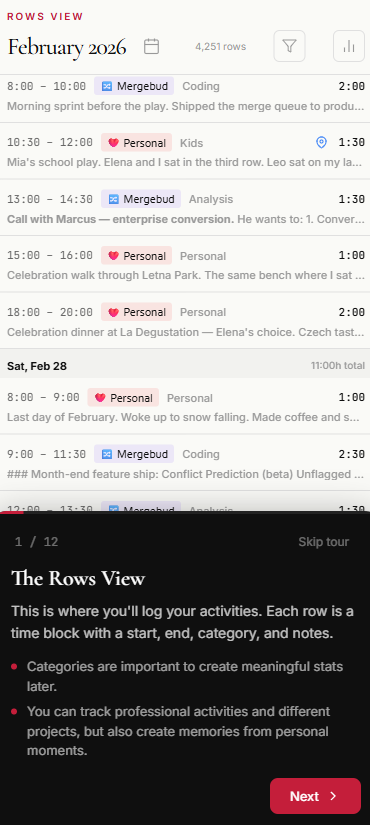
New users now see a Take the tour button when they first log in, instead of a blank screen. The tour loads real demo data (2 years, 4,260 entries from a fictional Czech programmer) and walks you through every feature in 12 steps:
Rows View — how time entries work, categories, day and week stats
Statistics — activity overview, category breakdown, year in review
Diary — turning your data into a readable journal
Map — reliving holidays and places you visited
Settings — customizing categories with emojis and colors
Print — creating printed memory books
The tour works on both desktop and mobile, with adapted layouts for each. On mobile, stats panels slide in above the tour card so you can see both. Navigate with Next/Back buttons or arrow keys.
A tour icon in the sidebar lets you restart it anytime — it pulses red if you have fewer than 15 days logged, gently reminding you to explore.
feature
New: rows agent — your personal AI memory assistant #
Introducing rows agent — a conversational AI assistant that lives in your terminal and turns your rows.life data into a queryable personal memory. This is an early proof of concept that connects directly to the Anthropic API.
What it can do:
Extended memory — Ask questions about your life data: "When did I last go to Madrid?", "How much time did I spend on project X this year?", "Show me my gym frequency by day of the week"
Interview mode — Say "help me log my day" and the agent will conversationally help you fill in your rows, inferring times and categories from your narrative
Visual output — The agent can render tables, bar charts, and even Mapbox maps directly in your terminal
Semantic + GPS search — Combines text search, semantic embeddings, and GPS bounding-box queries to find entries
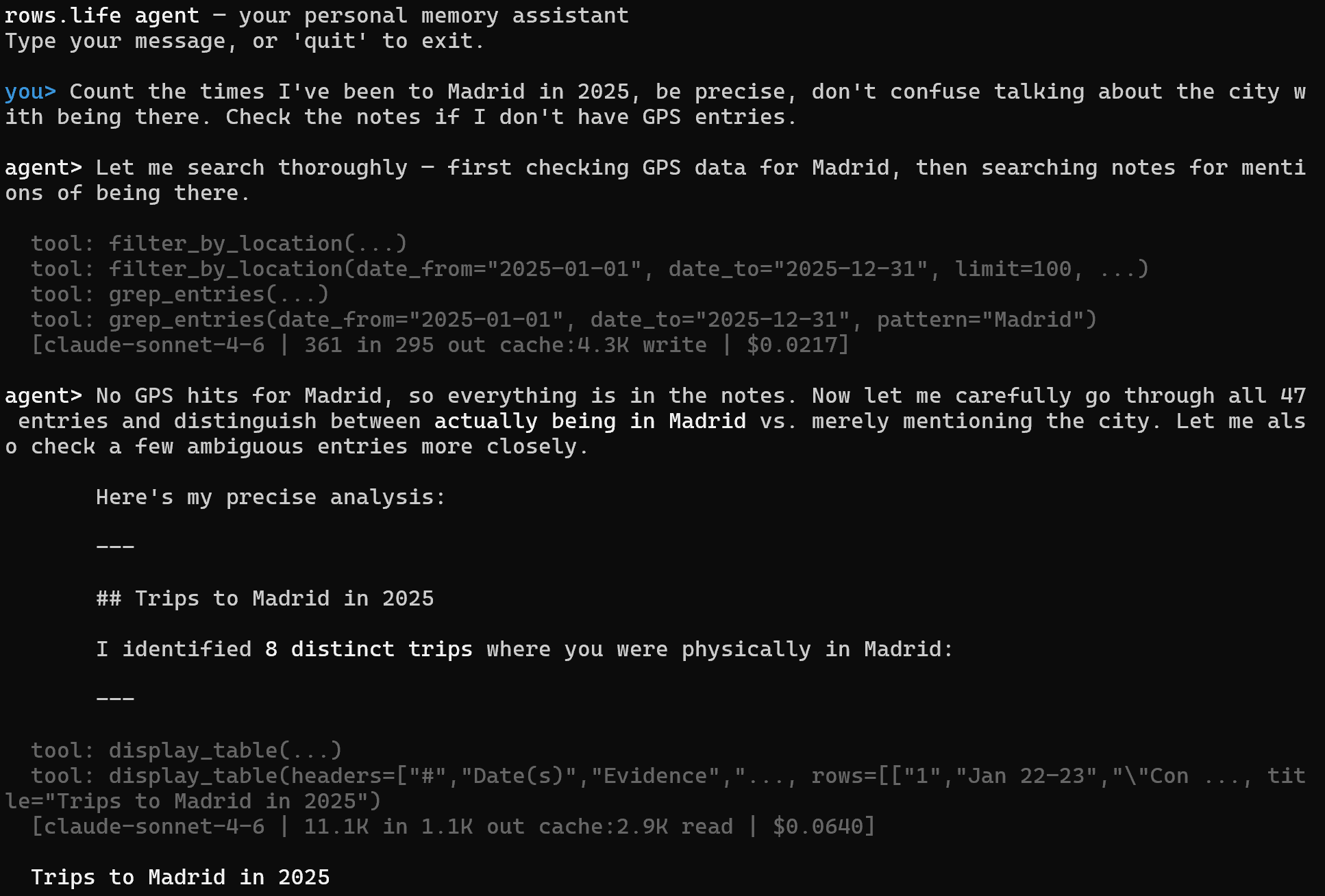
Smart enough to reason: With Claude Sonnet, the agent can distinguish between talking about Madrid in your notes vs. actually being there, cross-referencing GPS data with note content to give precise answers.
How to try it (requires your own Anthropic API key):
This is a proof of concept — the final product won't require you to bring your own API key. We're using it to learn what makes a great AI-powered life memory interface.
Press Ctrl+N in the terminal client to instantly set the current row's end time to right now. Perfect for when you start tracking a task and want to close it out without typing the time manually. Only works on rows that don't already have an end time. Works the same on macOS, Windows, and Linux.
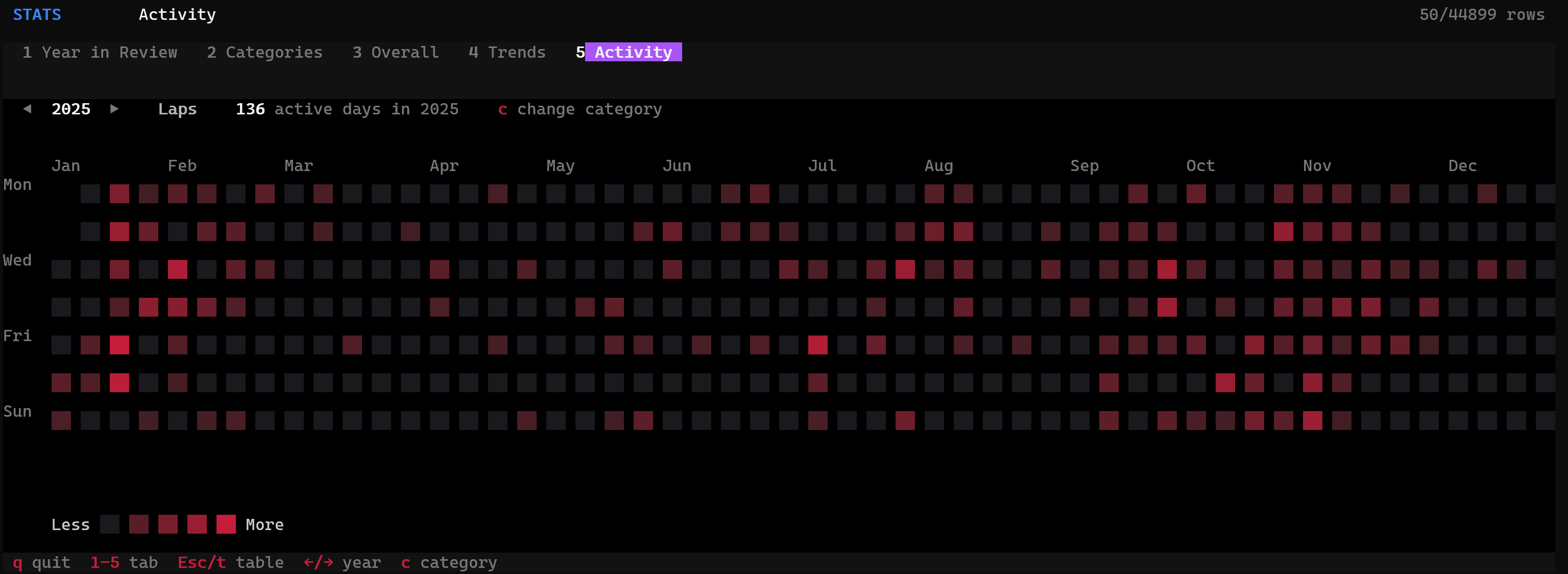
The terminal client now includes a GitHub-style activity heatmap (tab 5 in Stats). See your active days per category at a glance, navigate years with arrow keys, and filter by category or subcategory with the 'c' picker.
feature
Activity graph: see your active days per category #
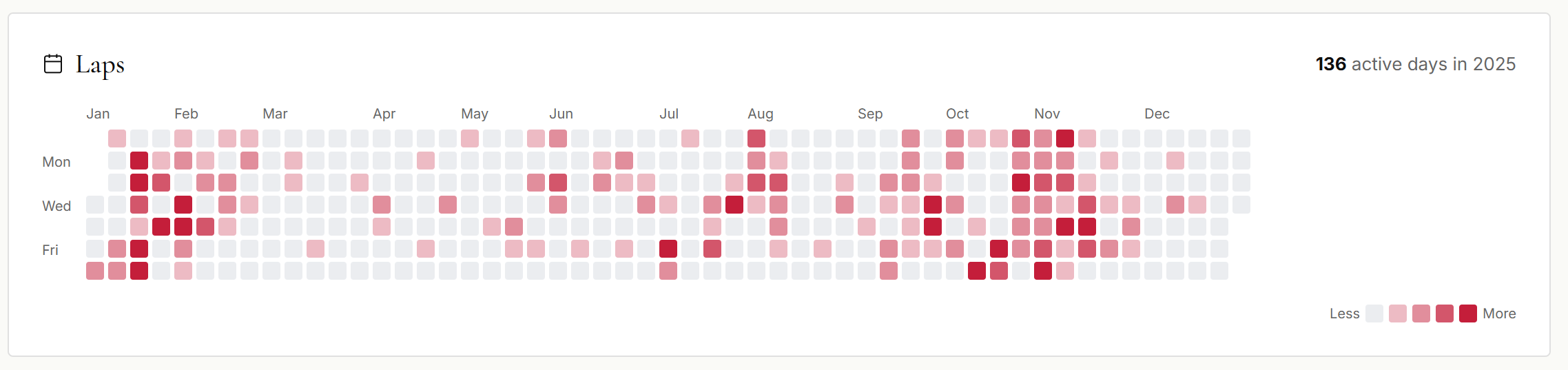
The category detail view now includes a GitHub-style activity graph showing how many days you were active in each category throughout the year. Darker squares mean more hours tracked that day, making it easy to spot patterns, streaks, and gaps at a glance.
The home page now showcases all features in an interactive carousel with seven tabs: Log, Analyze, Map, Mobile, Diary, Terminal, and AI. Each tab has multiple slides with screenshots and descriptions. Click any image to open a fullscreen lightbox with navigation across all slides. The old three-card grid has been replaced to better reflect everything rows.life can do.
The Trends chart now supports tracking total rows and rows with notes over time, alongside category hours. Select 'Total Rows' or 'Rows with Notes' chips to visualize how your tracking volume evolves day by day, week by week, or month by month.
The landing page feature carousel no longer auto-advances. Navigation is fully manual via arrows, dots, tabs, or swipe. Also fixed accidental slide changes on mobile when pinch-to-zoom overlapped with swipe gestures.
fix
Fix GPS points getting wrong timestamp on stopped entries #
Fixed a bug where adding a GPS location point to a stopped entry would record the entry's start time instead of the current time. This caused points to appear out of order, with newly added points jumping to the top of the list.
fix
Fix location picker constantly jumping back to current position #
Fixed an issue where the location picker map kept recentering to your GPS position on every accuracy update, making it impossible to pan to and select a different location — especially painful on mobile. The map now only auto-centers once when it gets the first GPS fix, then lets you freely browse and tap anywhere to place your pin. A new crosshair button in the top-right corner of the map lets you jump back to your current GPS position whenever you want.
rows.life now works offline. A service worker caches the app so it loads faster — especially noticeable when launching from the home screen on mobile. When you lose connection, you can still browse your previously loaded entries in read-only mode, with a subtle bar at the bottom letting you know you're offline. No data is lost — editing is simply disabled until you're back online. On the server side, a new 'updated since' endpoint enables more efficient incremental sync for the TUI/MCP client.
feature
TUI stats — beautiful charts right in your terminal #
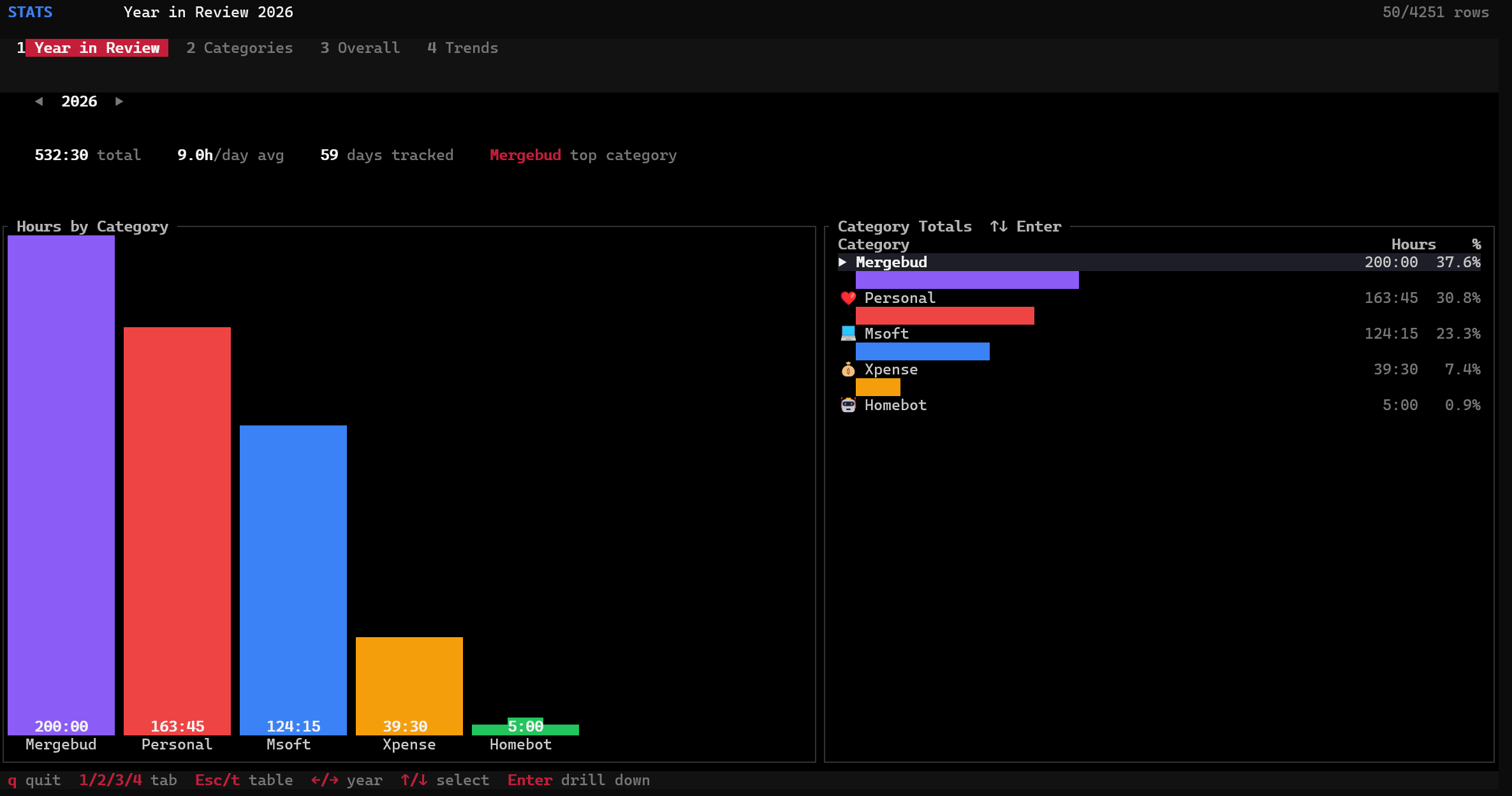
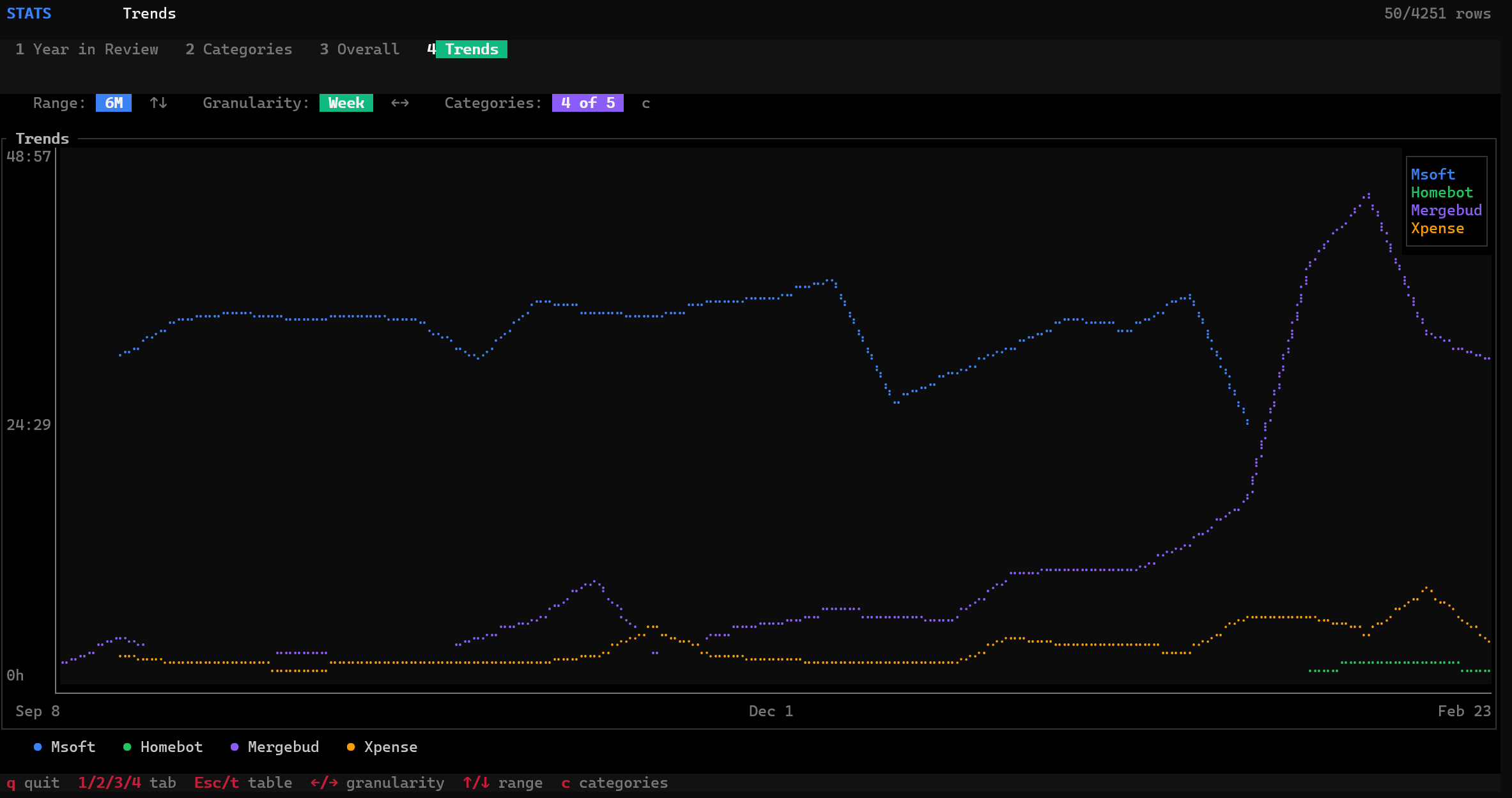
The terminal client now has a full stats module with interactive charts powered by ratatui. Press s from the table view to enter Stats mode with four tabs: Year in Review (bar chart of hours by category with drill-down into subcategories), Categories (browse all categories with all-time stats and subcategory breakdown), Overall (year-over-year comparison bar chart with summary table), and Trends (line chart with configurable date range, granularity, and category picker dialog). Navigate years with arrow keys, switch tabs with 1/2/3/4, drill down with Enter, and press c to select trend categories.
fix
Fix location points not updating in edit dialogs #
Fixed two issues with adding and removing location points in the entry edit dialog (both mobile and desktop). First, adding or removing a location point wouldn't visually update the list — the dialog appeared frozen, but the change was actually saved, so it would show up after closing and reopening. This was caused by the dialog working on a stale copy of the entry that wasn't kept in sync with the underlying data store. Second, when adding a new location point to an entry that already had one, the picker would show the existing point as a static pin instead of acquiring a fresh GPS fix. Now the picker always starts with GPS active, and all add/remove changes are reflected immediately in the dialog.
The terminal client no longer asks for your decryption passphrase when a valid cached key already exists. You'll only be prompted the first time or after a passphrase change.
Screenshots in the release notes page are now clickable — click any image to view it full-size in a lightbox overlay. Press the image or the × to close.
You can now delete entries directly from the terminal client. Press Delete or Backspace on any row and confirm with y — any other key cancels. The status bar shows the keybinding hint and a red confirmation prompt so you won't delete anything by accident.
feature
TUI map — browse your locations from the terminal #
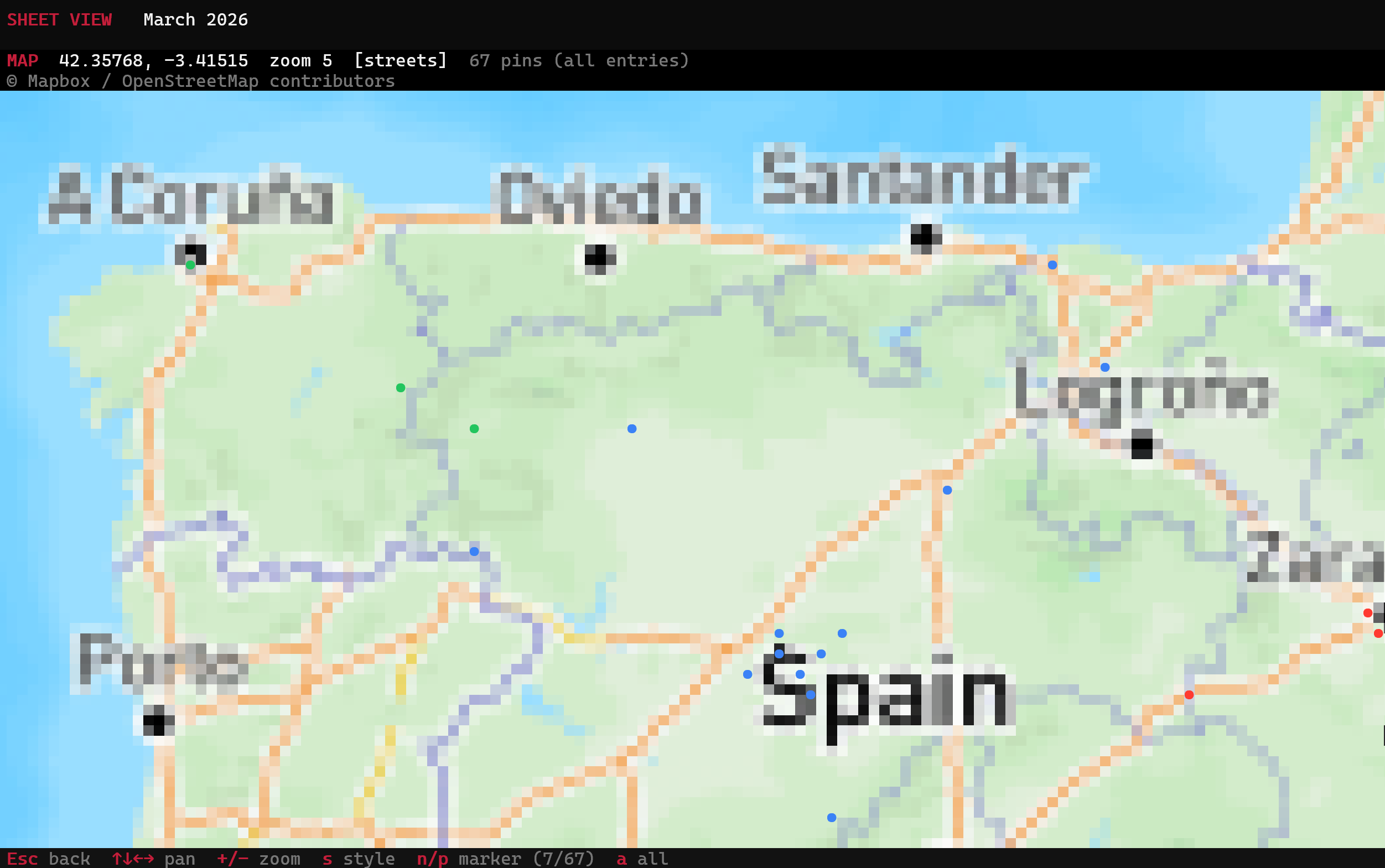
The terminal client now renders an interactive map with all your GPS-tagged entries. Press m on any row to see its location points on a true-color Mapbox map rendered with half-block pixel art. Pins are color-coded by category, and pressing n/p cycles through markers with a label showing time and category. Press a to toggle between the selected entry's locations and all your locations (fetched live from the API). Rows with GPS data show a ● indicator in the table so you can spot them at a glance. Pan with arrow keys, zoom with +/-, and switch between six map styles with s.
feature
Multiple GPS points per entry — trace your path, not just your start #
Entries can now hold multiple GPS coordinates instead of just one. This is a big deal for anyone who moves during an entry — a morning hike, a road trip, or an afternoon of running errands across town. Each point appears as its own pin on the Map, and tapping a pin shows the exact time that coordinate was recorded alongside the row's start time. In the entry editor, a new Location tab lists all points with their timestamps, and you can add or remove individual coordinates. Combined with rows import-gps, this means every photo you took during an entry automatically becomes a pin on the map — so a 3-hour bike ride doesn't collapse to a single dot, it becomes a trail of everywhere you stopped to take a picture.
improvement
CLI: smarter GPS import with distance-based dedup and auto-created entries #
The rows import-gps command now uses real distance calculations (haversine formula) to deduplicate GPS coordinates. Photos taken within 50 meters of each other on the same entry collapse into a single point — so ten selfies at the same restaurant become one pin, not ten. You can safely re-run the import on the same photo directory: existing coordinates are checked by distance, and only genuinely new locations are added. This also means importing overlapping photo libraries (e.g. iCloud copies + local backups) won't create duplicate pins.
The --create-missing flag is now much smarter. Instead of creating one row per day, it clusters photos by time: if there's more than a 1-hour gap between consecutive photos, it starts a new entry. Each entry gets the proper start and end times from its photo cluster, all GPS points (deduplicated within 50m), and a place name automatically resolved via OpenStreetMap reverse geocoding — so instead of a blank row, you get something like "Calle Mayor, Salamanca" as the note. The entries are created under the 'Location' category.
improvement
Map: formatted notes and "Go to entry" link in popups #
Map pin popups now render text formatting — bold, italic, underline, and strikethrough are displayed correctly instead of showing raw markdown markers. Additionally, each popup now includes a "Go to entry" link that takes you straight to that day in the Log view, making it easy to find and edit the full entry.
feature
TUI: create new categories and subcategories inline #
You can now create new categories and subcategories directly from the terminal UI picker. Just start typing a name that doesn't exist yet — a '+ create' option appears at the bottom of the list. Press Enter to create it on the server and assign it to the current row in one step. Works for both parent categories and subcategories.
feature
CLI: enrich your entries with GPS locations from your photos #
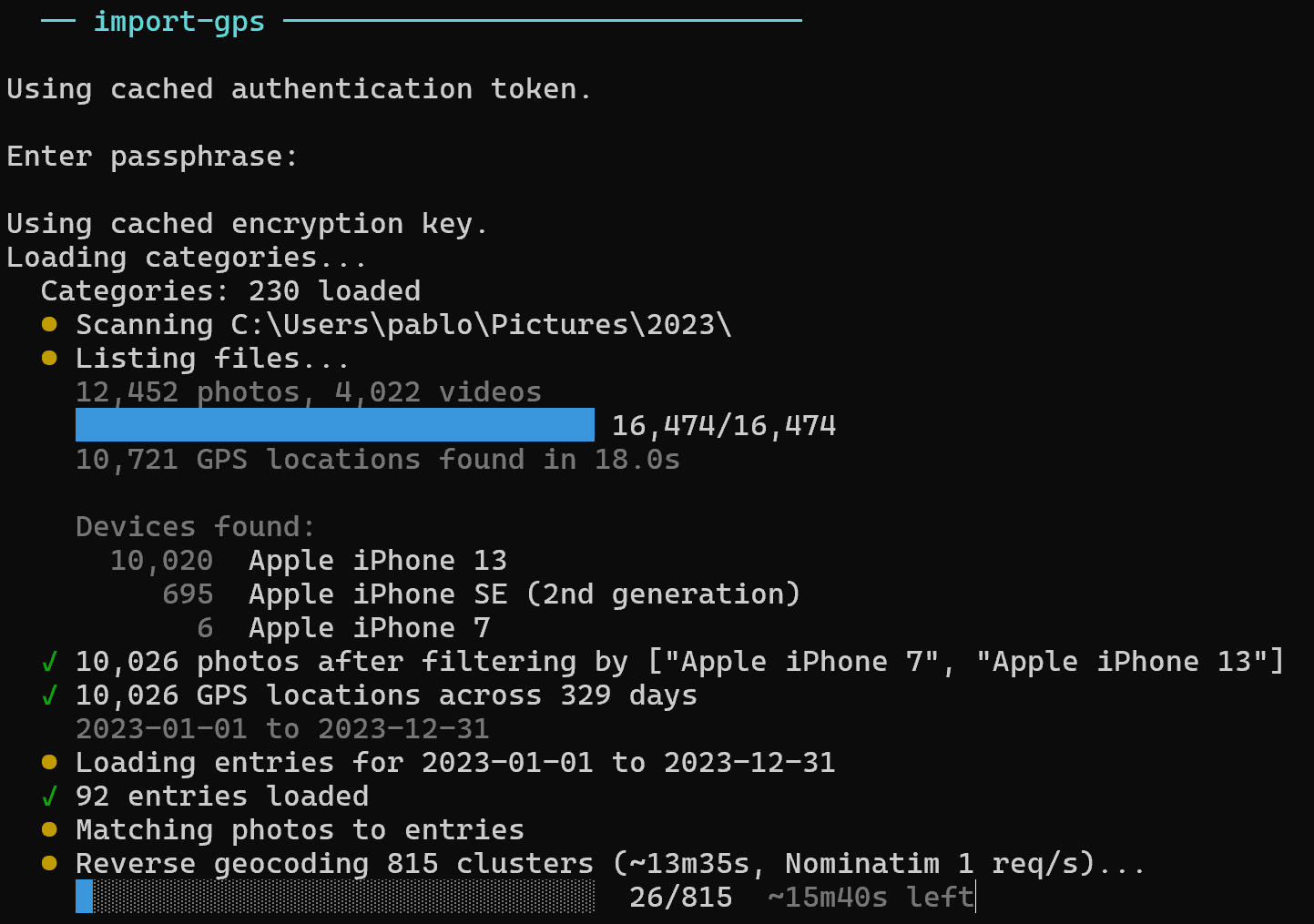
You can now enrich your entries by adding GPS locations extracted from your photo collections! Since photos and videos contain GPS coordinates in their EXIF metadata, the new rows import-gps command reads them and adds the locations to your rows.
This scans all photos and videos in the directory, filters by the specified devices (your phones, not your family's), and shows a preview of which entries would be enriched — without changing anything. The command displays a summary of all camera devices found, so you can decide which ones to include.
Remove --preview to actually apply the changes. Photos are strictly matched to rows by time window: a photo only enriches a row if it was taken during that row's time range. Existing locations are never overwritten.
Use --create-missing to also create new 'Location' entries for dates where you have GPS-tagged photos but no matching row. Without it, only existing rows are enriched.
Supports JPEG, HEIC, PNG, TIFF, MOV, and MP4 files.
The visual decryption effect — where your encrypted notes unscramble into readable text as they load — is now enabled for all users. We had temporarily restricted it to a single test account while we hardened it against edge cases with contenteditable fields and virtualized scrolling. After several days of testing with zero data corruption issues, we're confident it's solid. Enjoy the crypto vibes.
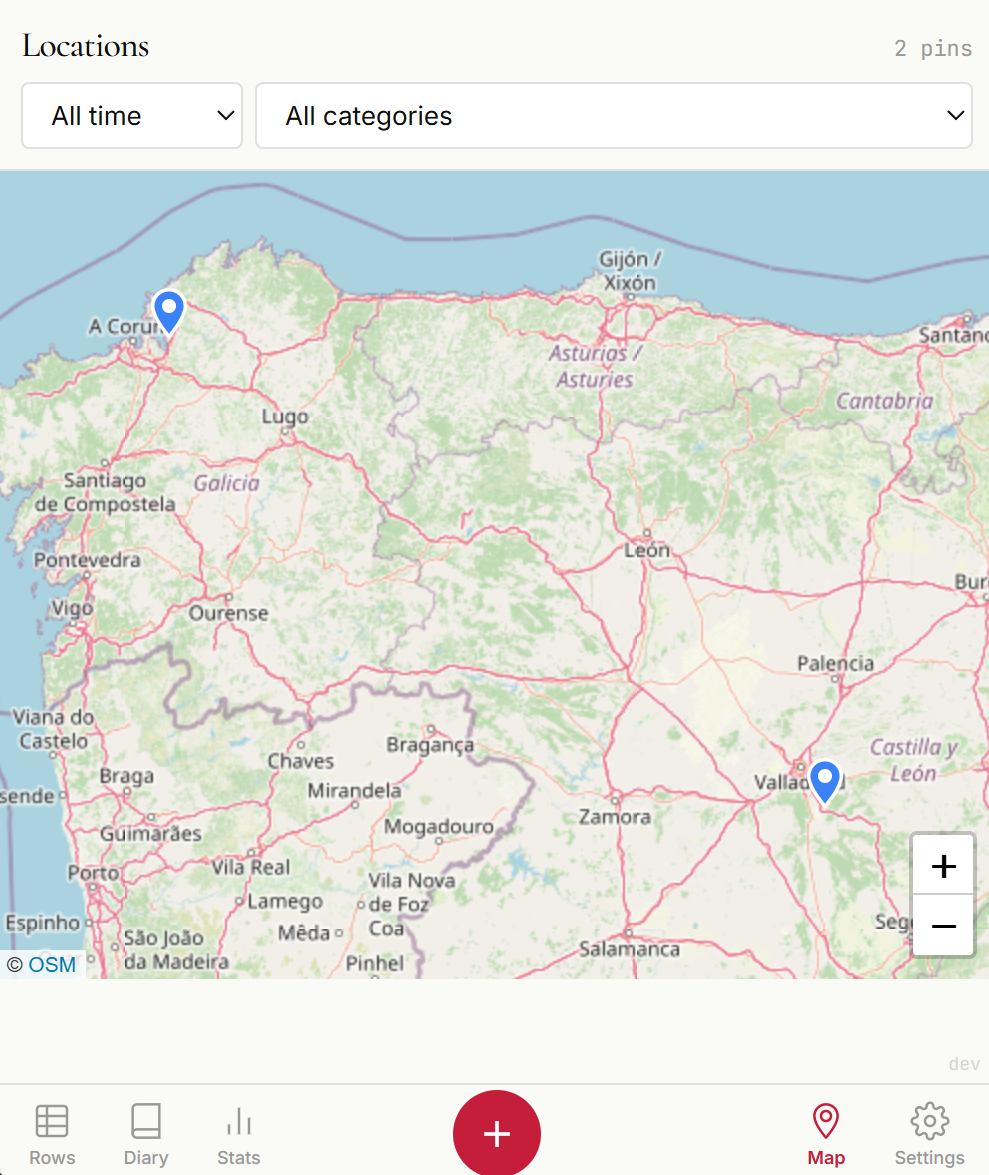
A brand new Map tab lets you visualize all your location-tagged entries on an interactive map. Pins are color-coded by category, and tapping one reveals the date, time, and notes. Filter by time range (today, this week, a specific month, or all time) and by category to answer questions like "where did I work from in February?" Pins cluster automatically when you zoom out, so even thousands of entries stay clean. As always, your coordinates are zero-knowledge encrypted — they're decrypted only in your browser.
Fixed a long-standing issue where changing a row's date or start time to a different day caused it to vanish mid-edit. The row would silently re-sort to its new chronological position, leaving you staring at a gap. Now the row stays pinned in place while you edit. When you move to another row, the view automatically navigates to the entry's new date so you can see exactly where it landed. Also fixed inserting rows between existing entries (via Ctrl+Shift+Enter or the insert icon): new rows now correctly inherit the time of the row above instead of jumping to the current date, so they stay right where you'd expect them.
Fixed a bug where reusing a pre-existing type (e.g. Rest / General) could cause it to appear as [unknown] in the stats breakdown. This happened because the app kept a stale reference to a category the server had already cleaned up. Most likely to affect accounts with only a few entries.
Removed the delete button from the mobile edit screen to free up vertical space for typing. You can still delete rows by swiping on them in the rows list.
A database permission issue caused row updates to fail for approximately 2 hours. The new row versioning table was created during a deployment but the application's database user was not granted access to it. Since row versioning runs before every save, all updates were blocked. No data was lost — rows that were already saved remained intact, but new edits during the window were not persisted. The issue has been fixed and a permission step has been added to prevent this from happening again.
fix
Fixed notes corruption caused by decryption visual effect #
Fixed a bug where the decryption visual effect could leave garbled cipher characters stuck on screen, on both desktop and mobile. When data refreshed in the background while the scramble animation was still playing (e.g. returning to the tab, or saving another entry), the animation could lose track of the original text — leaving some fields permanently showing a mix of real text and random characters. Data in the database was never corrupted by this bug; it only affected what was shown on screen. However, if you edited and saved while the garbled text was visible, the corrupted text would be saved. The fix ensures the animation properly preserves and restores original content, and adds safety checks that cancel the animation when you interact with a field.
Saving a mobile row entry now immediately reflects the changes in the rows list. Previously, edited values wouldn't appear until the page was refreshed.
Fixed an issue where row edits on mobile appeared saved locally but were lost on reload. The save button now shows 'Saving...' while the server confirms, and rolls back the UI if the save fails so you always see the truth.
Every time you update a row, the server now saves a snapshot of the previous values before overwriting. If a bug ever corrupts a row's content, the original data can be recovered from the version history. Versions are kept as long as the row exists and cleaned up automatically when a deleted row is permanently purged (30+ days after deletion). No impact on normal usage.
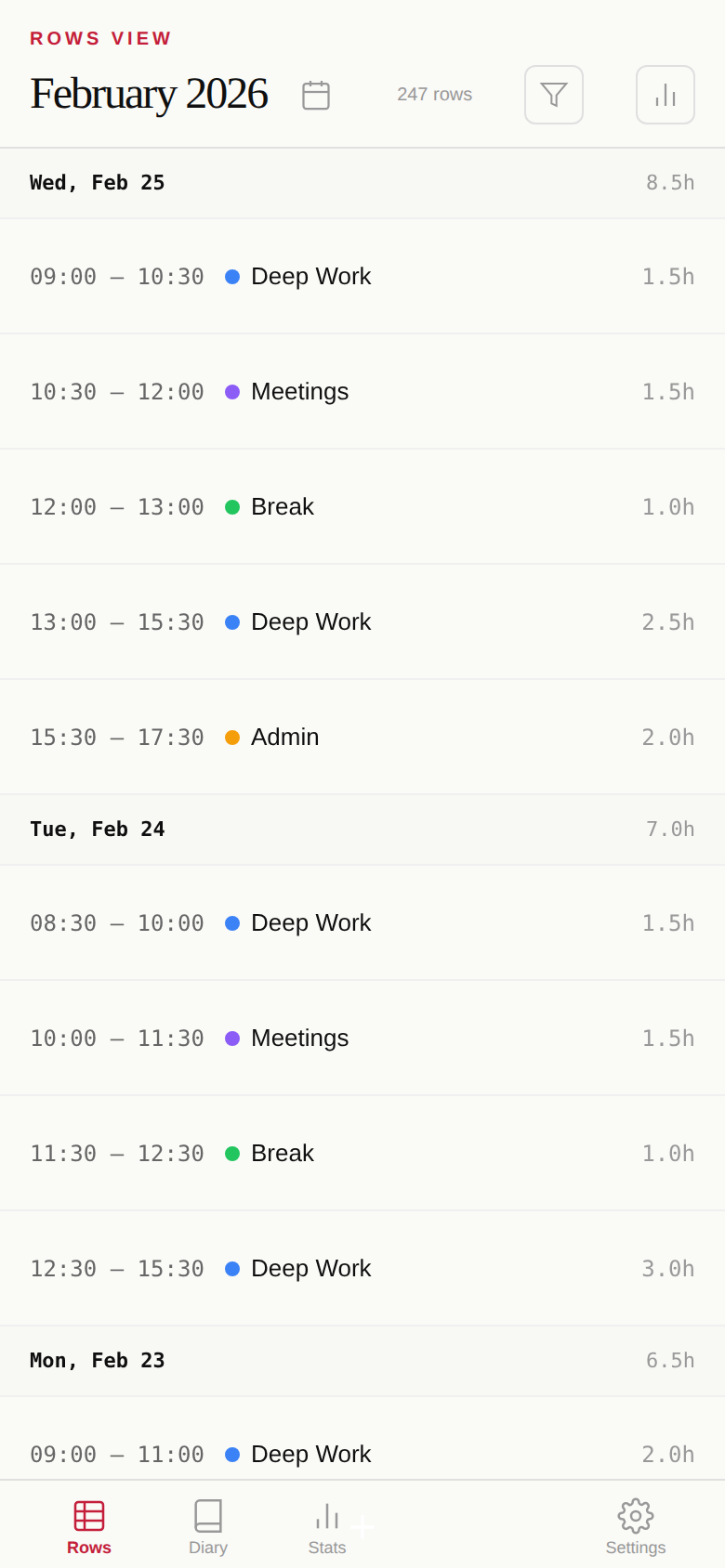
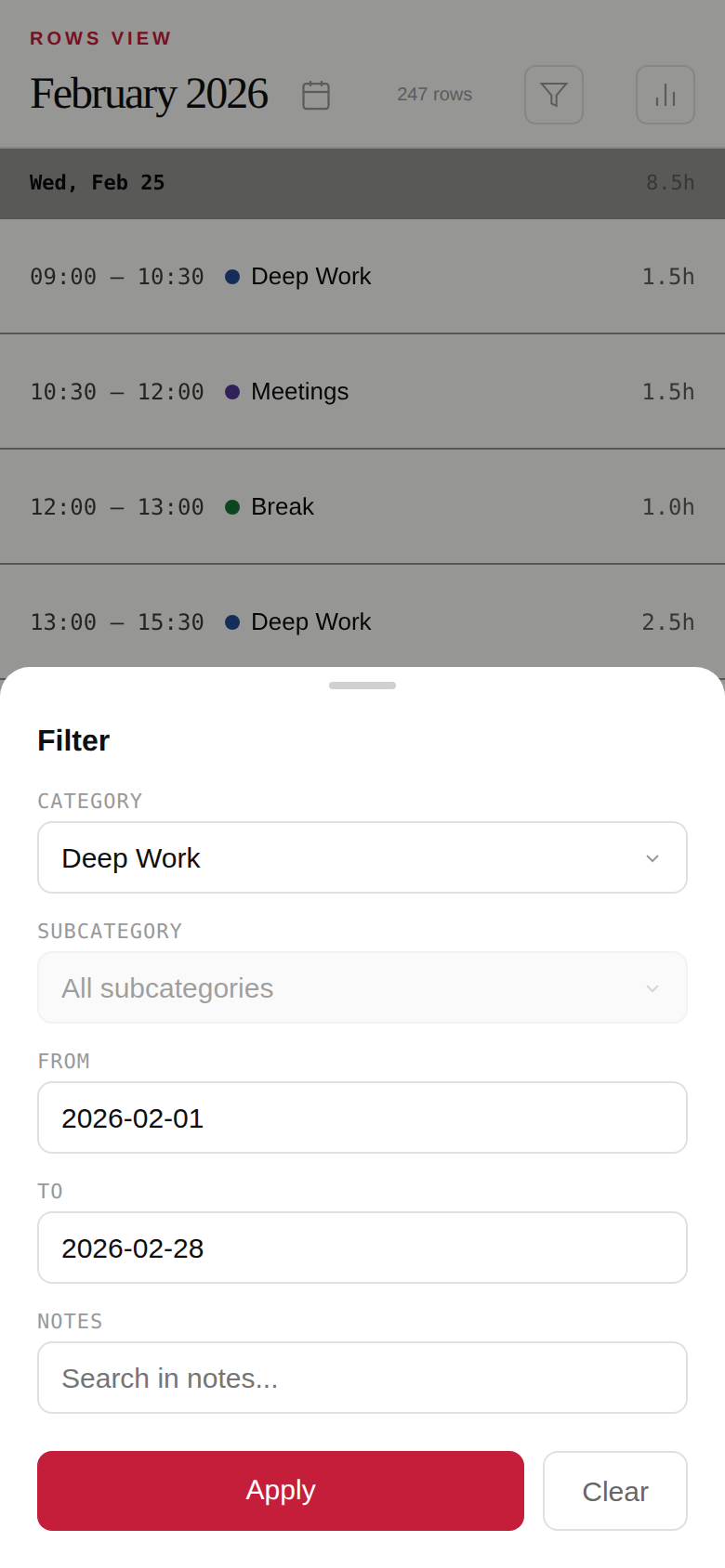
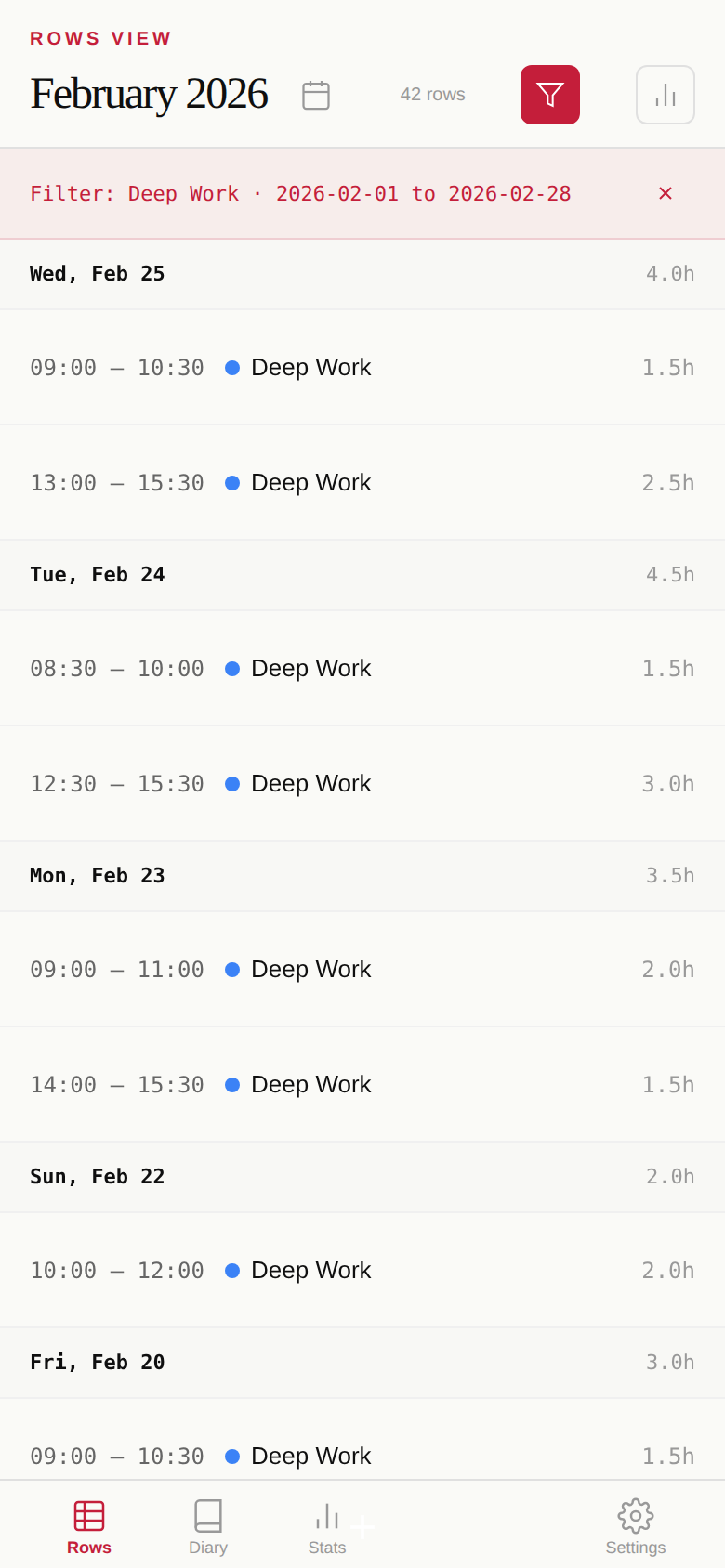
The filter system now works on mobile. Tap the filter icon to open a bottom sheet with category, subcategory, date range, and notes search. A crimson bar shows your active filter with one-tap clear. All five filter types from desktop are available on mobile.
New rows now use the current date and time when the gap from your last entry exceeds 5 hours. No more manually correcting the date after a night's sleep or a long break.
Optionally attach your GPS location to time entries. An interactive map picker shows where you are, and coordinates appear in both the diary view and PDF exports. Location data is encrypted with the same zero-knowledge architecture as your notes — the server only sees encrypted blobs.
Notes now support rich text formatting with bold, italic, and underline. A compact formatting toolbar appears when editing, and keyboard shortcuts (Ctrl+B, Ctrl+I, Ctrl+U) work too. What you type is what you see — true WYSIWYG editing right inside the spreadsheet row.
The diary view is now available on mobile with a dedicated single-page layout optimized for smaller screens. Browse your days as a journal, right from your phone.
New users can now explore rows.life with two years of realistic demo data (4,260 entries) before committing to their own tracking. See what long-term time tracking looks like — statistics, diary entries, and patterns — all without creating a single row.
New Filter panel lets you narrow down rows by category, subcategory, and date range. Also includes full-text notes search — your encrypted notes are decrypted client-side and searched locally, so the server never sees your search queries.
You can now edit dates and manage categories directly on mobile. Categories also refresh automatically when switching devices, so changes sync across all your sessions.
Autocomplete suggestions are now ranked by usage frequency — your most-used categories and subcategories appear first. Also added the ability to reassign subcategories between categories.
Major improvements to the mobile experience: better button handling, fixed layout issues, smoother view transitions without blank screens, and landscape mode support.
The first public release of rows.life — a time tracking app with zero-knowledge encryption. Log your hours in a spreadsheet-like interface, view statistics by category, and export everything to PDF.